Step 1: Create a New Purchase Invoice
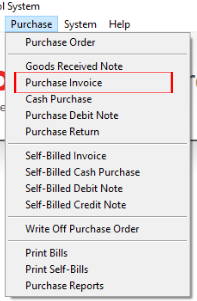
Navigate to: Purchase > Purchase Invoice
Step 2: Add a New Purchase Invoice
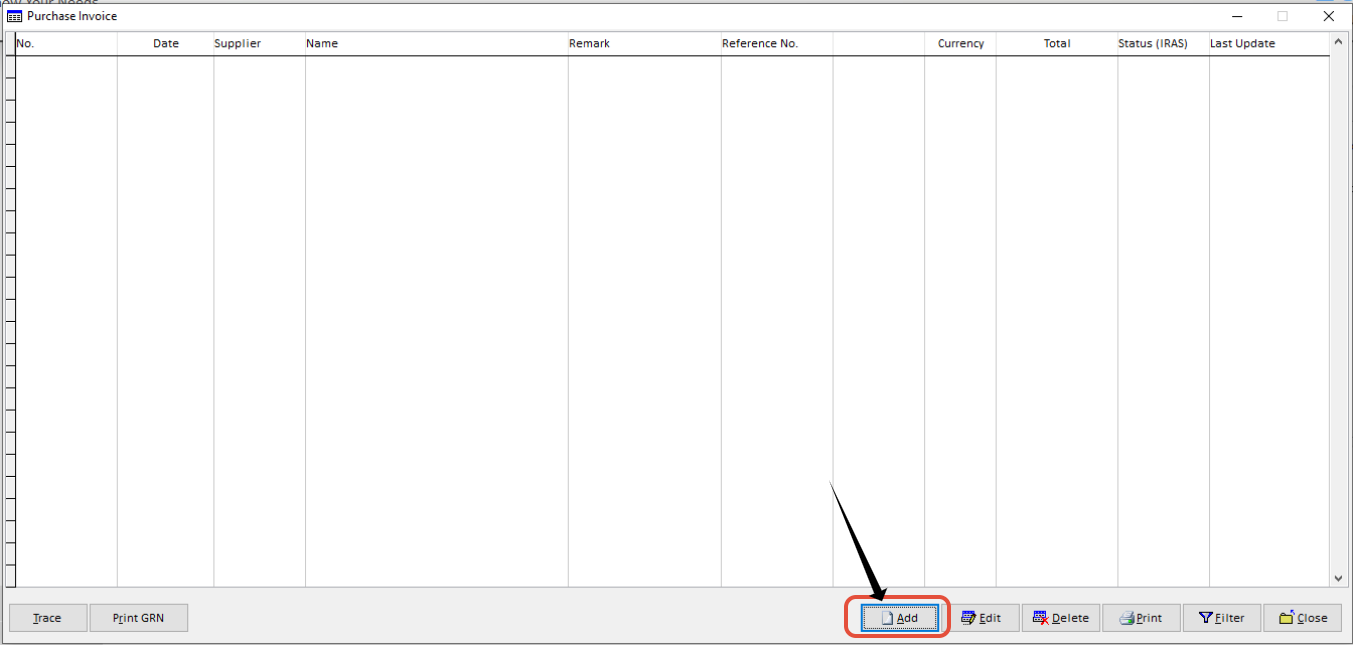
Click Add to create a new Purchase Invoice.
Step 3: Enter the Supplier Invoice Details
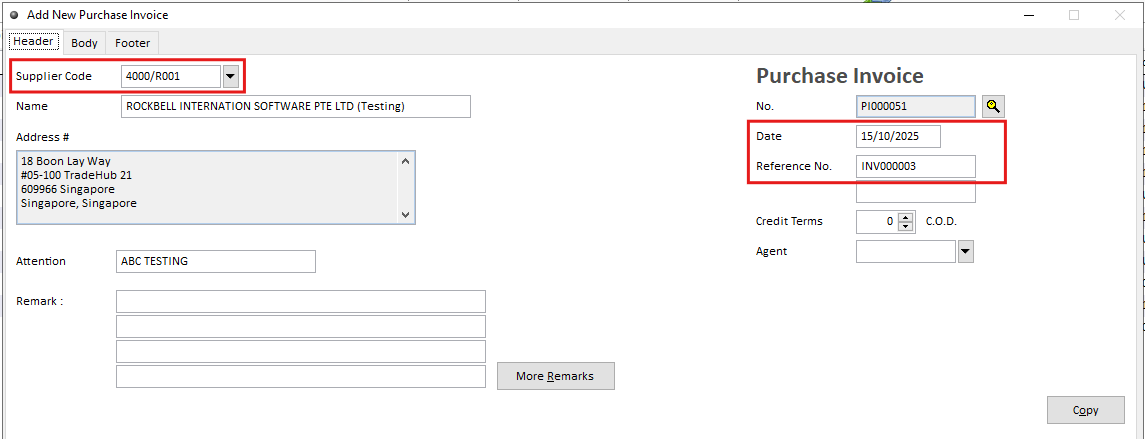
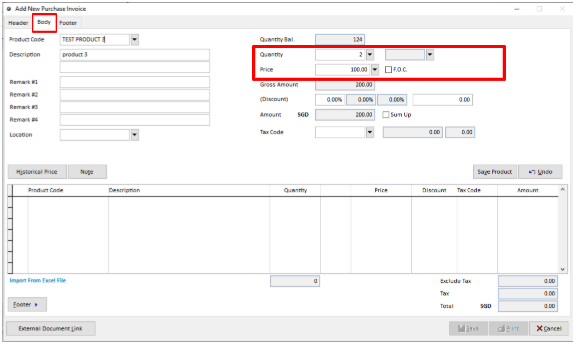
Enter the required information, including: Supplier Code, Reference No and Invoice Date. Then, navigate to the Body section to input your item details, including price and quantity.
Note : .Non-Peppol Supplier → Enter UEN only, leave Peppol ID blank in Creditor Maintenance.
Step 4: Save and Submit the Purchase Invoice
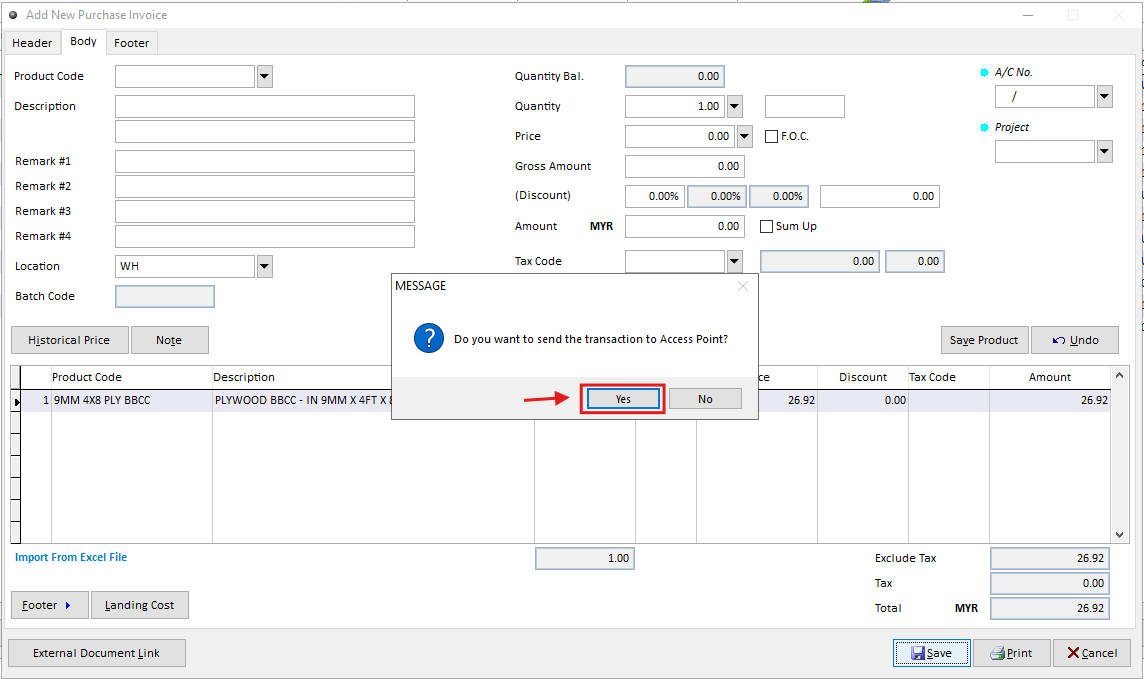
After clicking Save or Print, the system will display a prompt whether to send the e-invoice to Access Point.
“Do you want to send the transaction to Access Point?”
Select Yes → The document will be transmitted automatically.
Select No → The document will not be transmitted immediately and can be submitted later through Document Management.