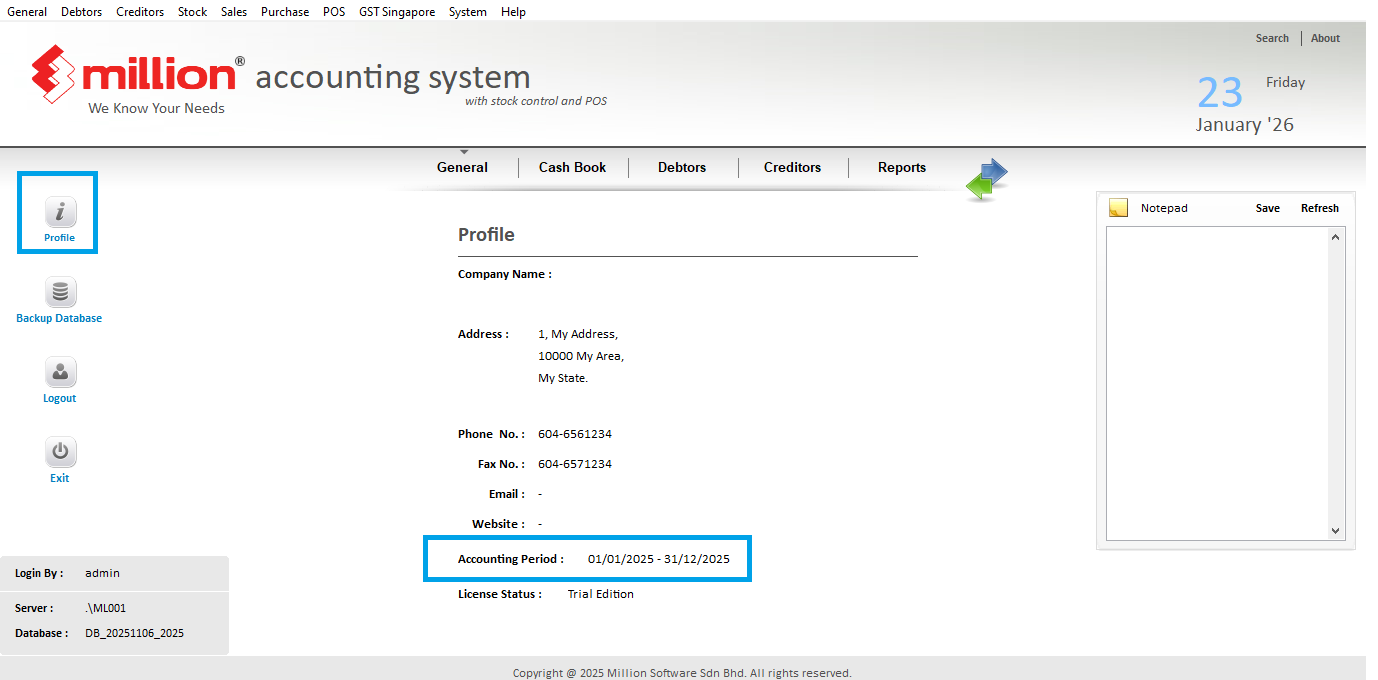
After you have done the year end closing on your server / main PC, you may find that your archive is not appearing on workstation / sub PC.
This is not because you did the year end closing wrongly, it is because Million controls the list of companies individually on each PC.
Here is a step-by-step guide to add your archive back into your Million.
NOTE: This article applies to both Million Accounting & Million Payroll softwares.
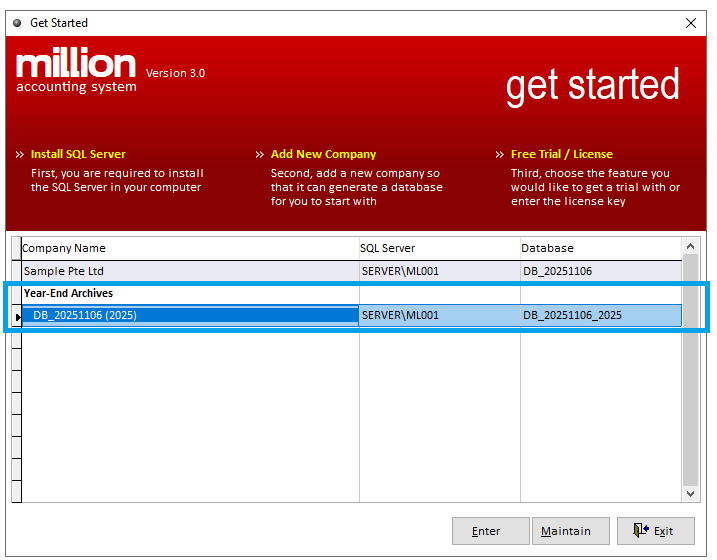
Step 1: At the server / main PC, look for the year-end archive & take note of the 'Company Name' (1st column) & 'Database' (3rd column).
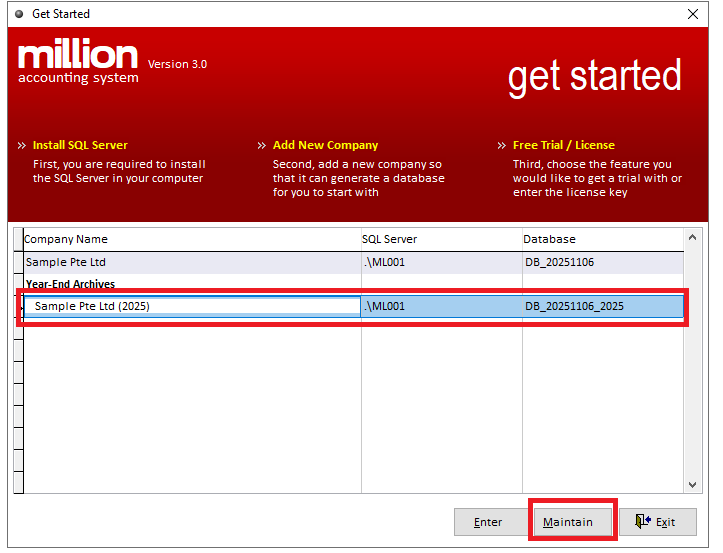
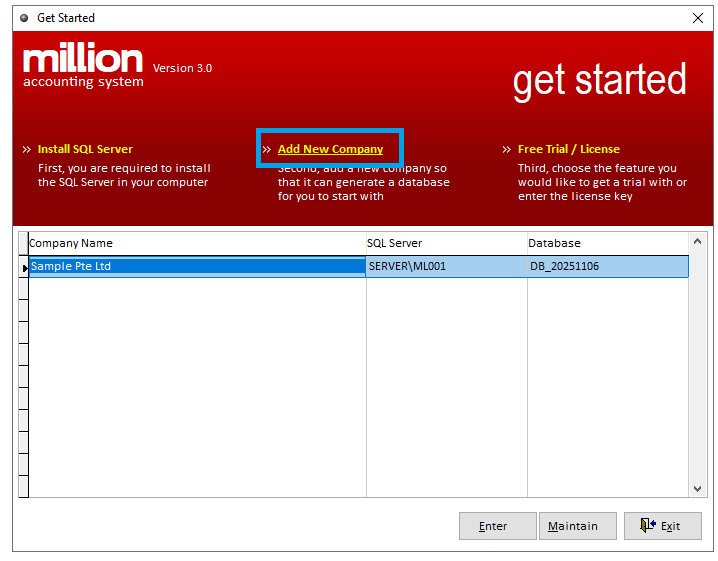
Step 2: At the workstation / sub PC (where archive is absent), click 'Add New Company'.
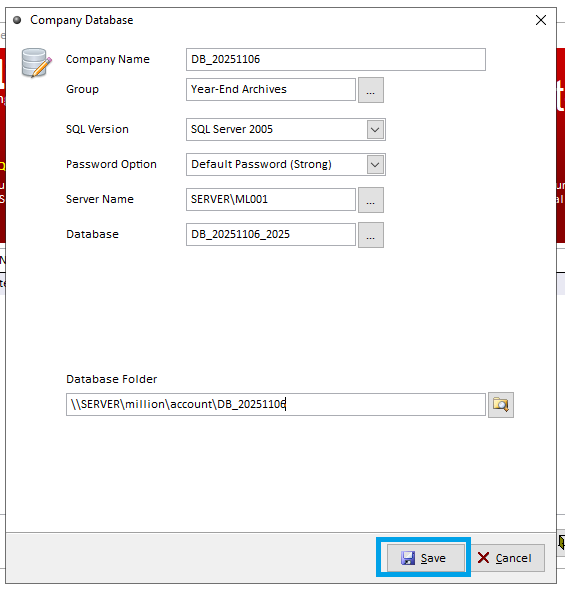
Step 3: Key in the details:
- Company Name: Same as the Company Name in Step 1.
- Group: Year-End Archives
- SQL Version & Password Option: Auto-populated by Million, no need to key in.
- Server name: Auto-populated by Million, it is either server PC device name or IP address.
- Database: Same as the Database in Step 1.
- Database Folder:
- Shared folder file path of your server / main PC that contains the document formats & templates. (Also known as the Working Directory in older softwares.)
- Normally, the format is \\(Server PC device name / IP address)\Million\Account\(Database Name)
- You may also select your current company > Maintain > copy the Database Folder file path & paste here.
After key in all the details, click 'Save' to save.
Step 4: The archive will be available now for login.
To verify that this is the archive, you may login to the archive & click 'Profile', the accounting period will be the previous period if it is the archive.