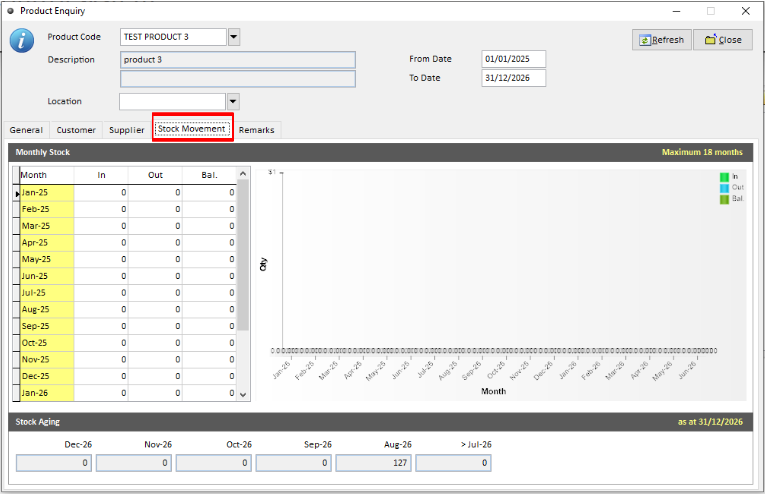
Product Inquiry allows users to check product details, stock levels, customer and supplier transaction history, and stock movements for a selected product.
Step 1: Open Product Inquiry
Navigate to Stock > Stock Enquiry > Product Inquiry
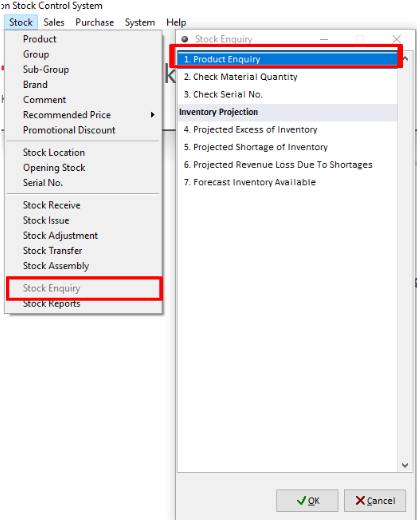
Step 2: Select a Product
Enter or select the required Product Code. Set the From Date, To Date, and Location if required, then click Refresh to display the latest information.
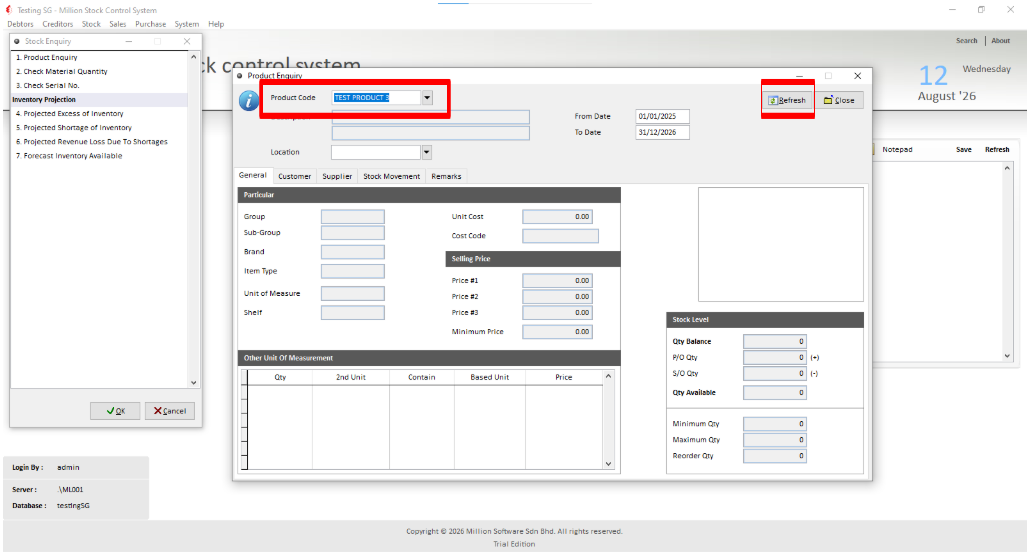
Step 3: Review General Product Information
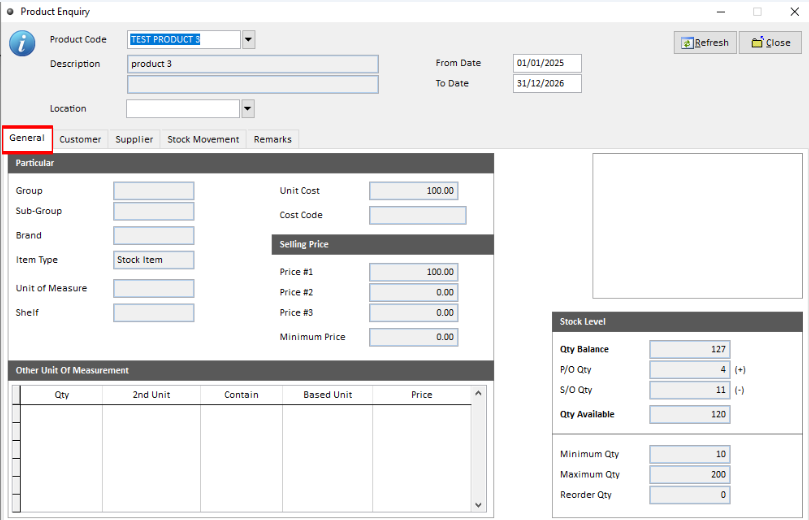
Under the General tab, you can view the product’s information.
The Stock Level section also displays:
Qty Balance – Current stock quantity
P/O Qty – Outstanding Purchase Order quantity
S/O Qty – Outstanding Sales Order quantity
Qty Available – Available quantity after considering P/O and S/O quantities
Note: Qty Available is calculated based on the current stock balance together with outstanding Purchase Order and Sales Order quantities.
Qty Available = Qty Balance + P/O Qty − S/O Qty
Step 4: Review Customer Transaction History
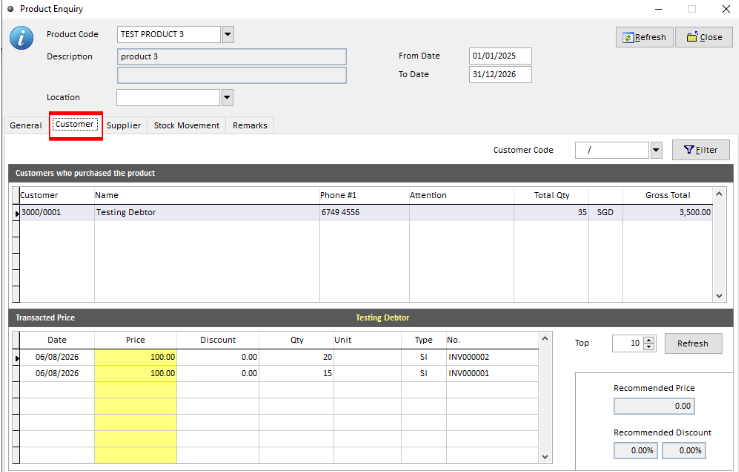
Click the Customer tab to view customers who have purchased the selected product together with their customer details. Select a customer to view the transaction history for that product.
Step 5: Review Supplier Transaction History
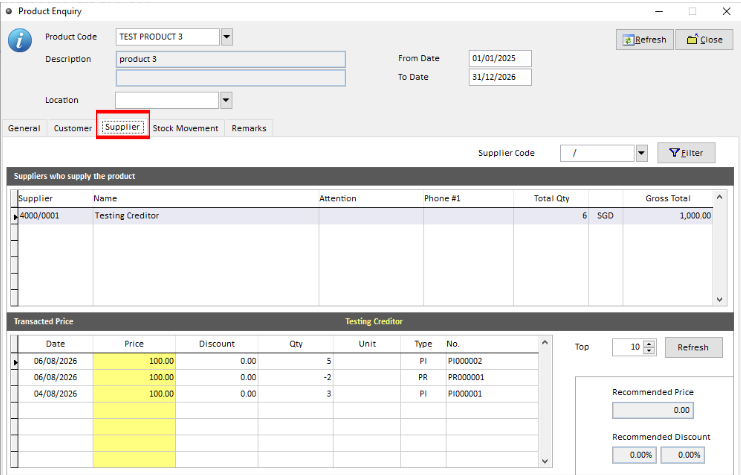
Click the Supplier tab to view suppliers who have supplied the selected product together with their supplier details. Select a supplier to view the Transacted Price history.
Step 6: Review Stock Movement
Click the Stock Movement tab to review the selected product's stock movement history. The chart provides a visual overview of the product's stock movement by month.