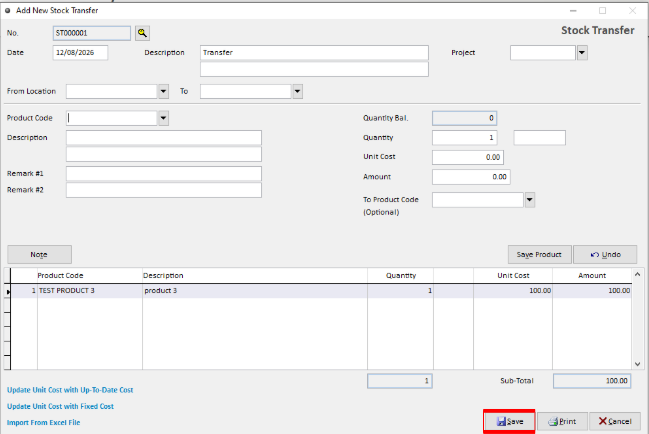
Stock Transfer is used to transfer items from one stock location to another.
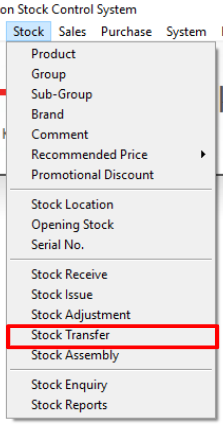
Step 1: Open Stock Transfer
Navigate to Stock > Stock Transfer
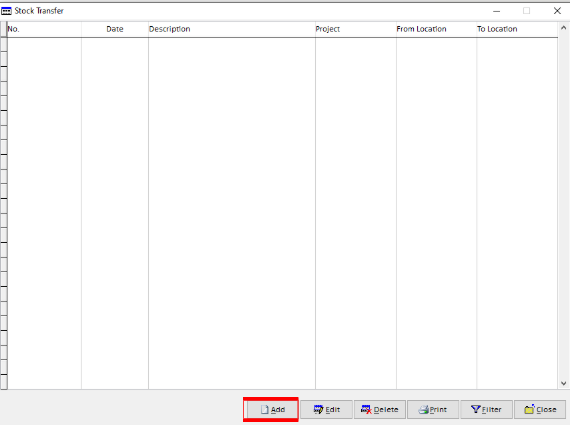
Step 2: Create a New Stock Transfer
Click Add to create a new Stock Transfer transaction.
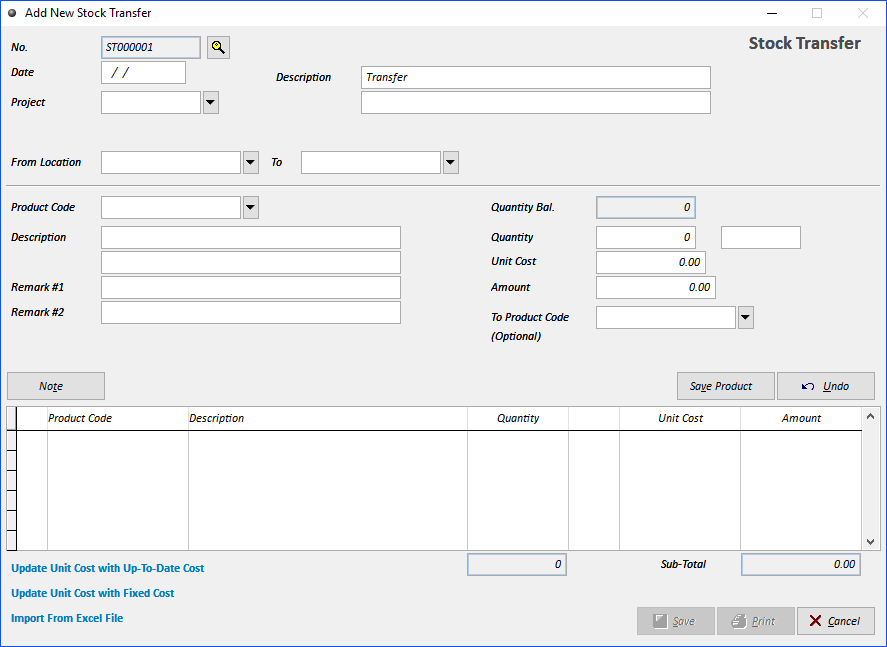
Step 3: Enter the Stock Transfer Details
Enter the required information:
No. – The document number is generated automatically. It can be preset or reset if required.
Date – Enter the transfer date.
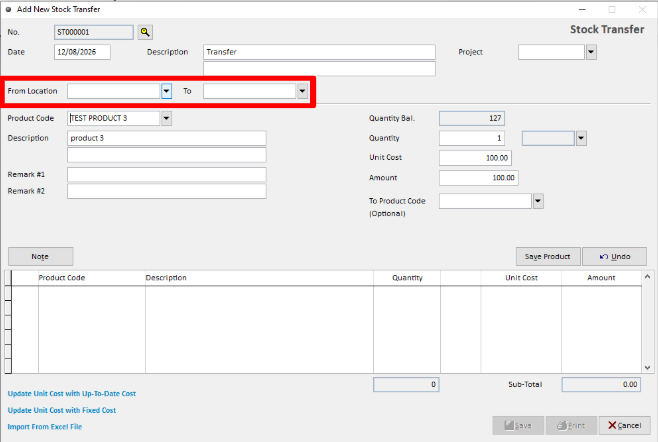
Location – Select the relevant stock location.
Product Code – Enter the Product Code or select it from the drop-down list.
Description – The product description will be displayed automatically.
Remark 1 & 2 – Enter the reason or additional information if required.
Step 4: Select the Stock Location
Select the relevant Location for the stock transfer.
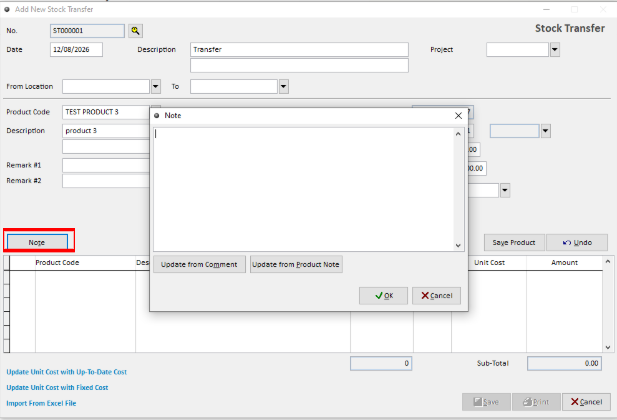
Step 5: Add a Note (Optional)
Enter any additional information in the Note field if required.
Step 6: Save the Stock Transfer
Review the transfer details and click Save to complete the Stock Transfer.