
How to Resolve GST InvoiceNow Connectivity Issues
If a connectivity issue occurs during GST InvoiceNow submission, the system may be unable to retrieve the correct Document ID, IRAS Acknowledgement ID or IRAS Transmission ID.
Follow the steps below after the connection has been restored.
Step 1: Identify the Connectivity Error
When submitting a GST InvoiceNow transaction during a connectivity issue, the system may display an error message.
Wait until the connectivity has been restored before proceeding.
Step 2: Open Document Management
Once the connection has been restored, navigate to the appropriate Document Management screen:
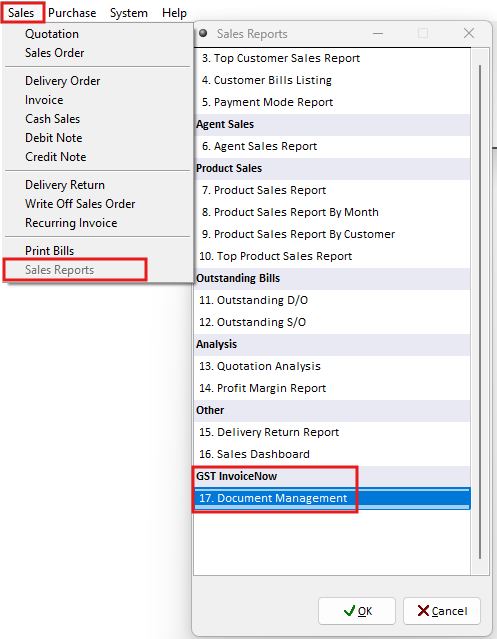
For Sales Transactions:
Sales > Sales Report > Document Management
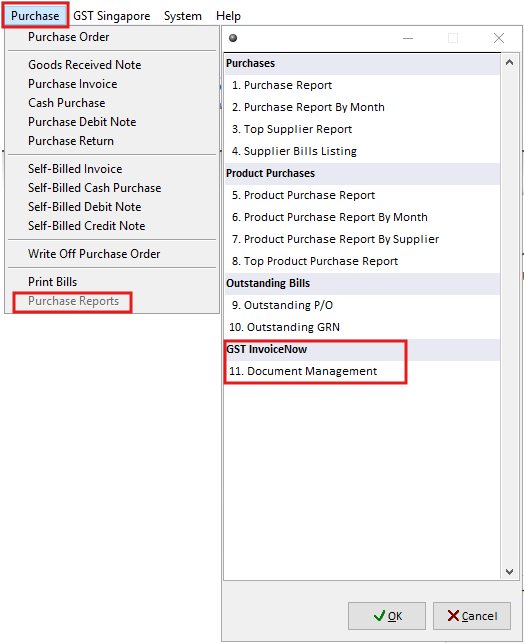
For Purchase Transactions:
Purchase > Purchase Report > Document Management
Step 3: Filter Unsubmitted Documents
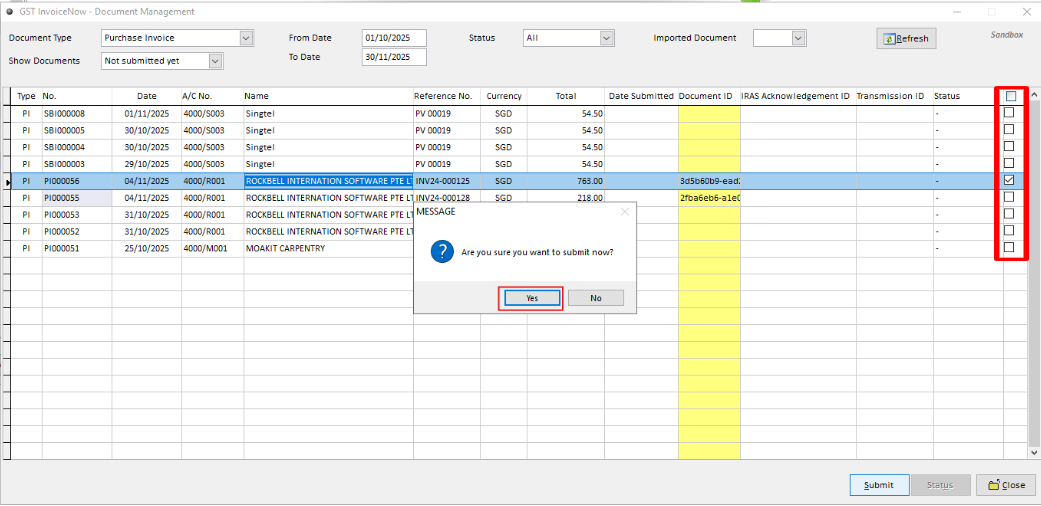
In the Document Management screen, set:
Show Documents > Not Submitted Yet
The system will display transactions that have not been successfully submitted.

Step 4: Select the Affected Transaction
Locate the affected transaction and tick the checkbox beside it.
You may select multiple affected transactions if required.
Step 5: Resubmit the Transaction
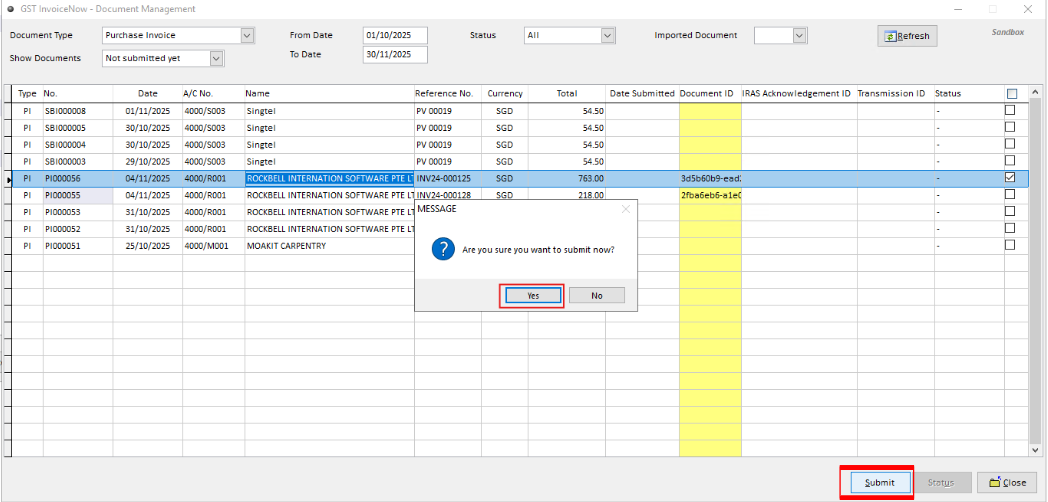
Click Submit to resubmit the selected transaction(s).
Step 6: Verify the Updated Submission Details
After resubmission, check that the latest submission details have been retrieved:
Document ID
IRAS Acknowledgement ID
IRAS Transmission ID
