
Step 1: Create a New Sales Invoice
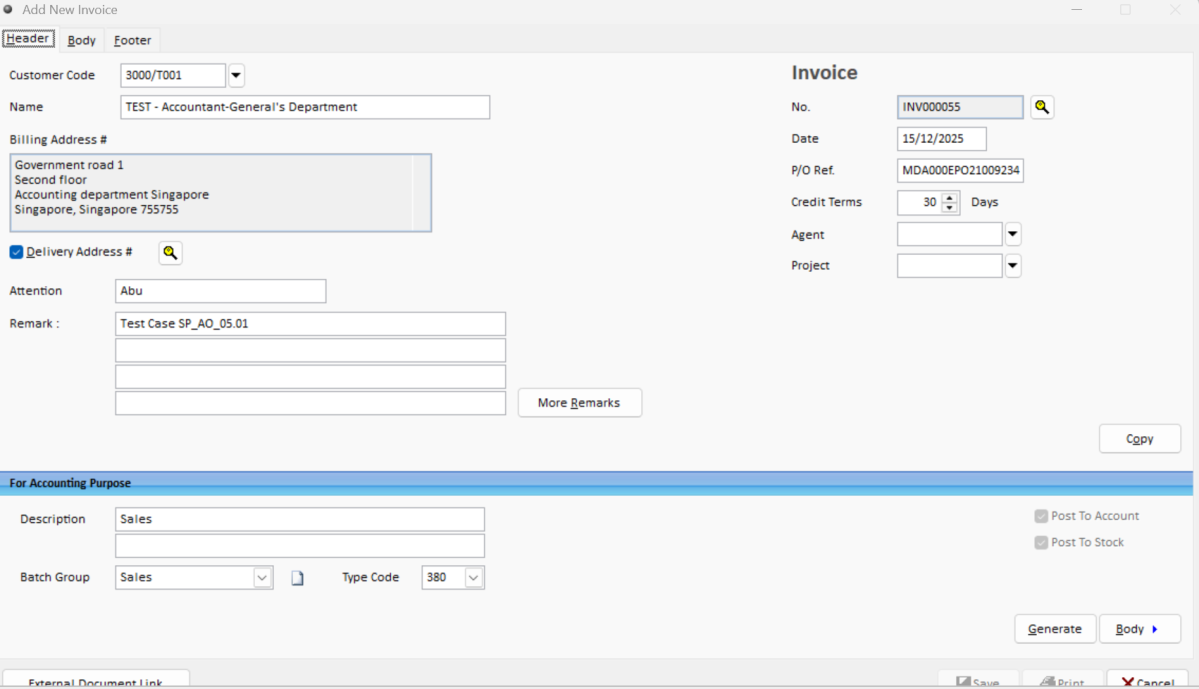
Users may create a direct Sales Invoice by entering the debtor, remarks, attention, and PO
reference, adding products, and clicking Save - without converting from a sales order.
Step 2: Enter the Credit Terms
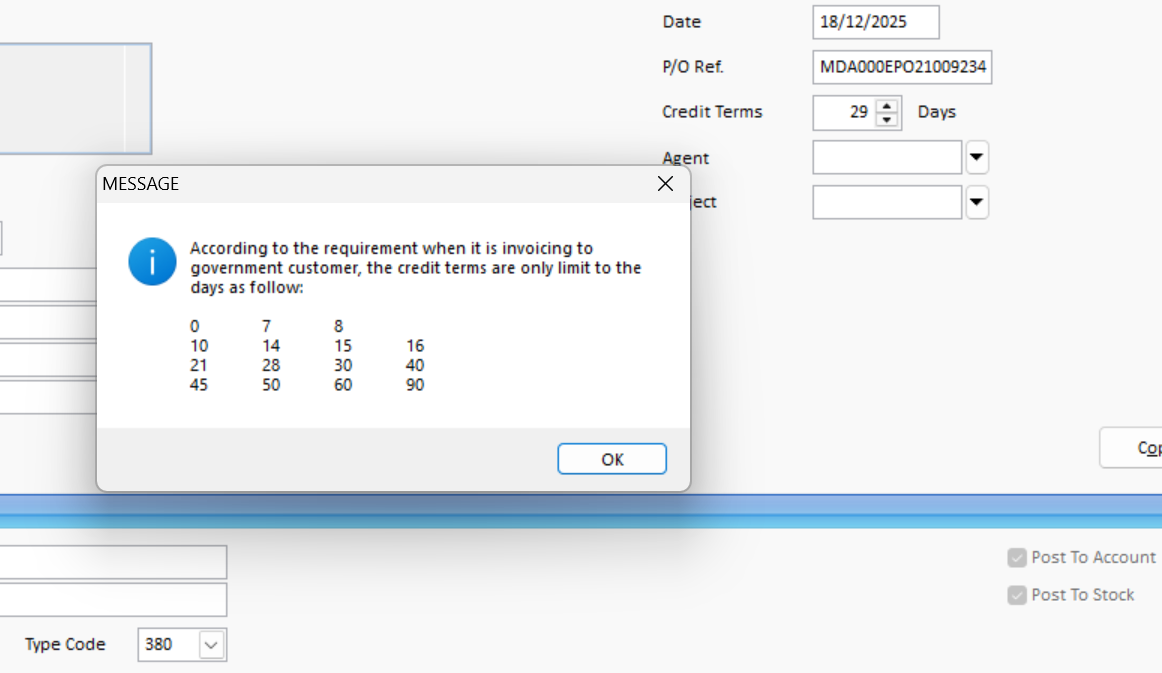
Enter the required Credit Terms.
The system will display an error message if the Credit Terms do not comply with the government requirements.
Note: Credit Terms are mandatory when creating an invoice for a government customer.
Step 3: Save and Submit the Invoice
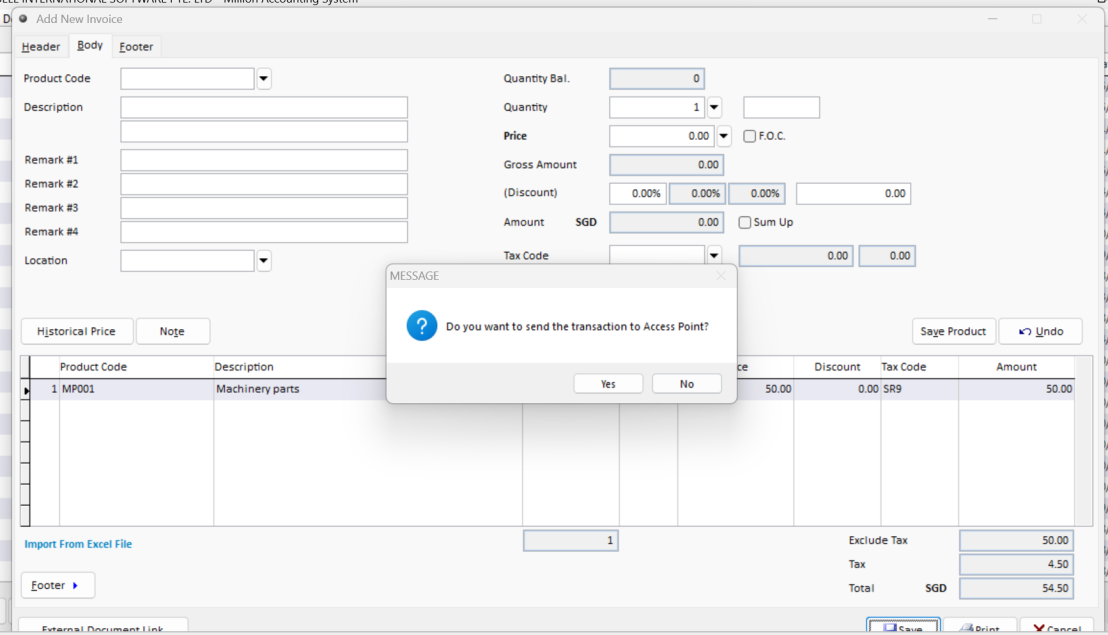
After clicking Save or Print, the system will display a prompt whether to send the invoice through InvoiceNow.
“Do you want to send the transaction to Access Point?”
Select Yes → The document will be transmitted automatically.
Select No → The document will not be transmitted immediately and can be submitted later through Document Management.
Step 4: Verify the Government Invoice Requirements
Before submitting an invoice to a Singapore Government Agency, ensure that the following required information has been completed:
Business sub unit in debtor setup is required
Business Reg. No. and email field in general setup is required
Attention field in invoice is required
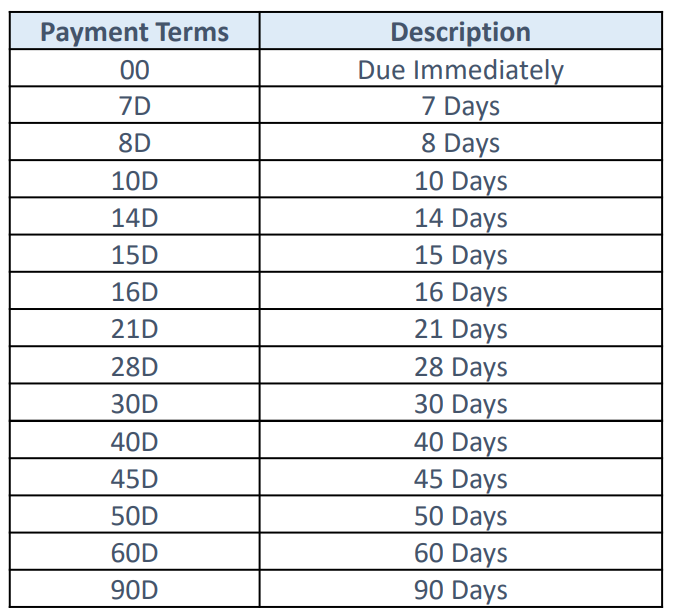
Credit terms and currency only accepted by the table shown below
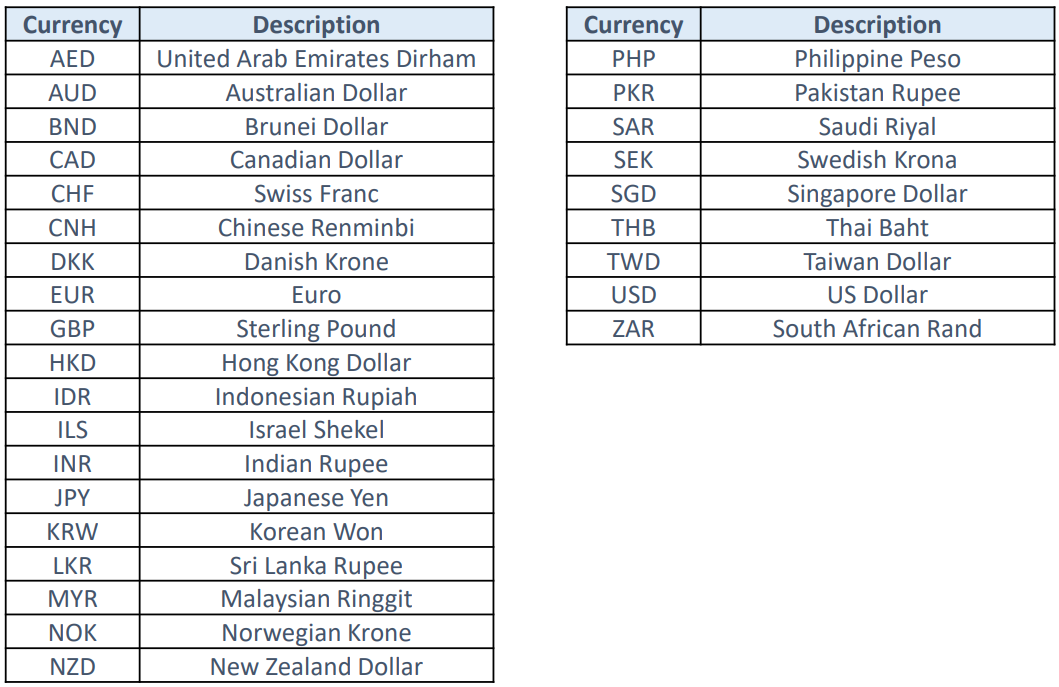
Remark : For more details of requirements, below the link is for the requirement that need to
send invoice to Singapore government agencies (Page 4-12)
Vendors@Gov – E-Invoice Submission via InvoiceNow Technical Guide