Users may send responses such as Accepted, Rejected, or Conditionally Accepted.
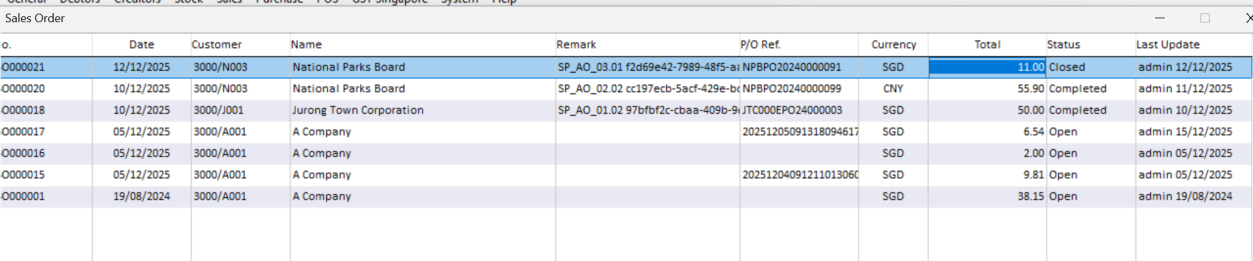
Order Balance, Order Change, and Order Cancel responses will automatically
update the original sales order.
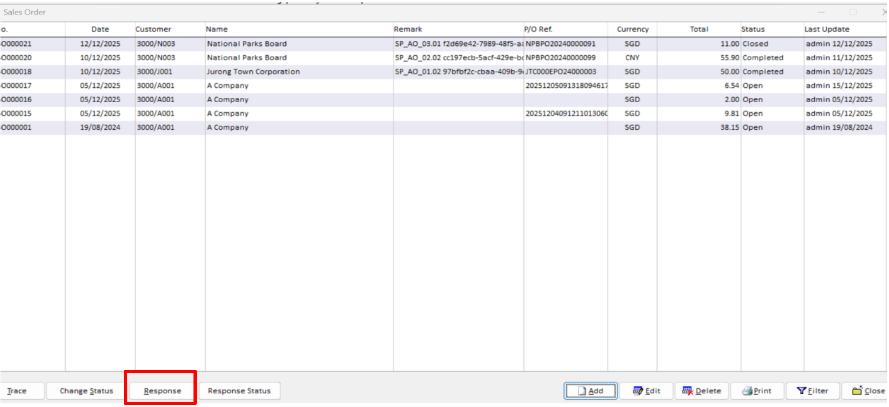
Step 1: Open Sales Order Response
Open the required Sales Order.
Click Response to receive an Order Response.
Users may click the Response button to receive an order response.
Step 2: Check the Response Status
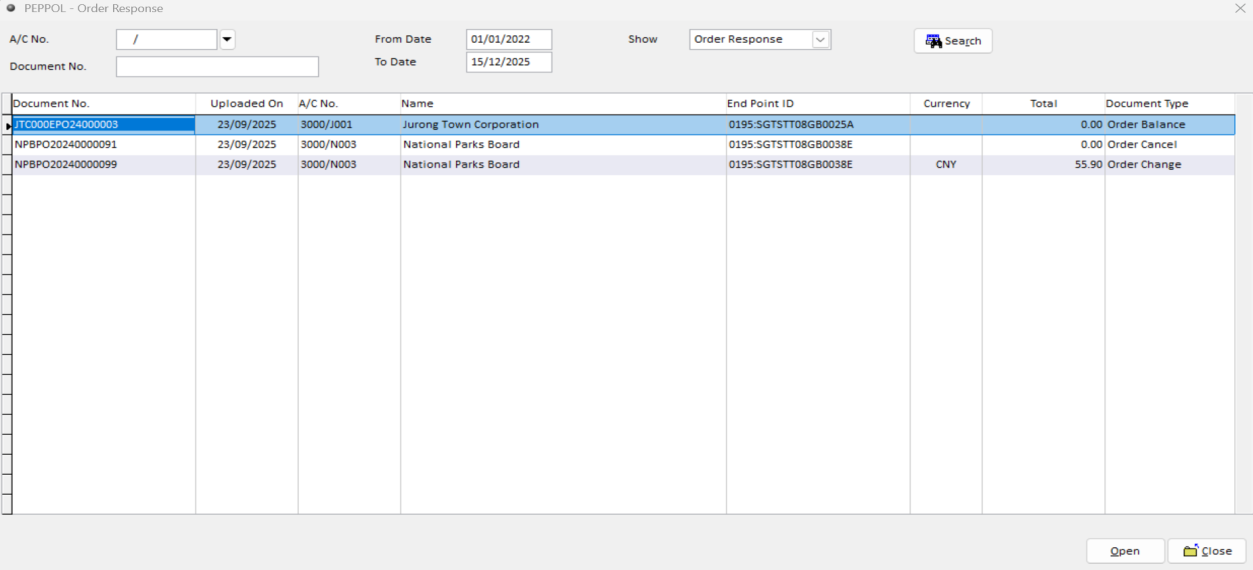
To check the responses that have been sent, click the Response Status button. Enter the required date range, then click Search to display the Order Responses received during the selected period.
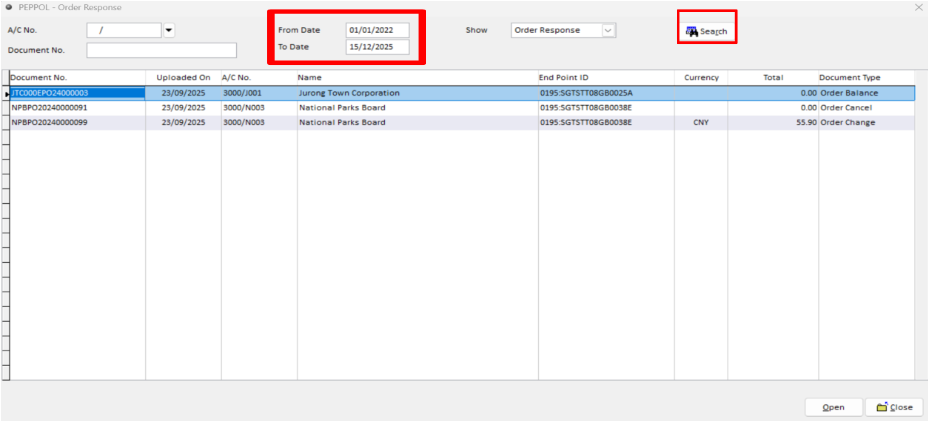
Step 3: Select the Order Response
The system supports three types of Order Responses:
Order Balance – Displays information such as the remaining quantity to be delivered, buyer details, order remarks, and order line notes.
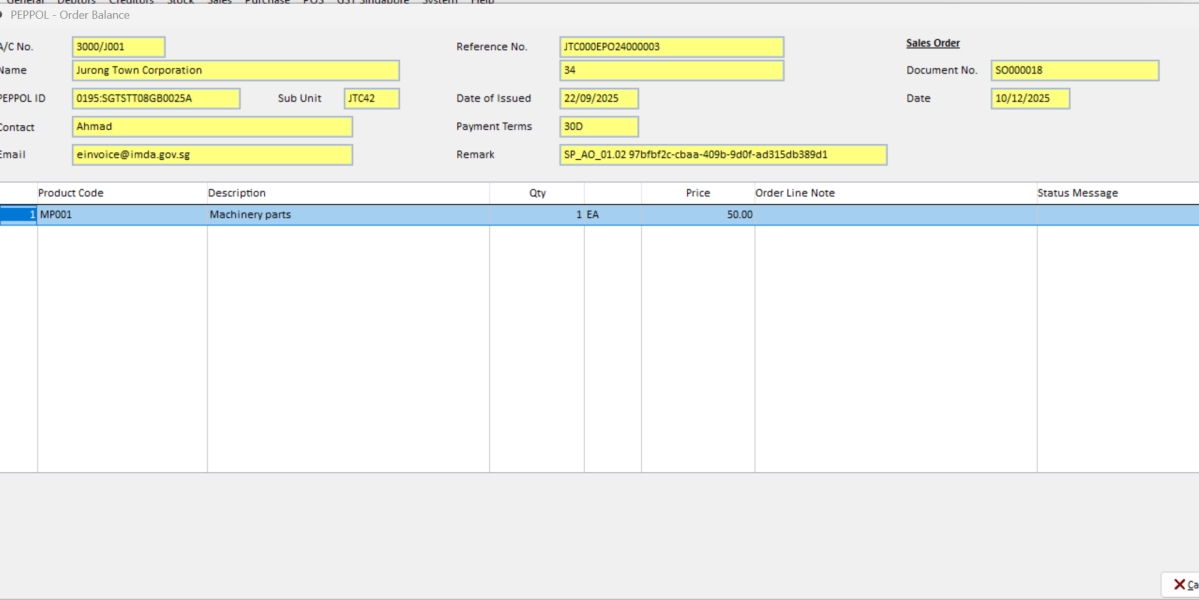
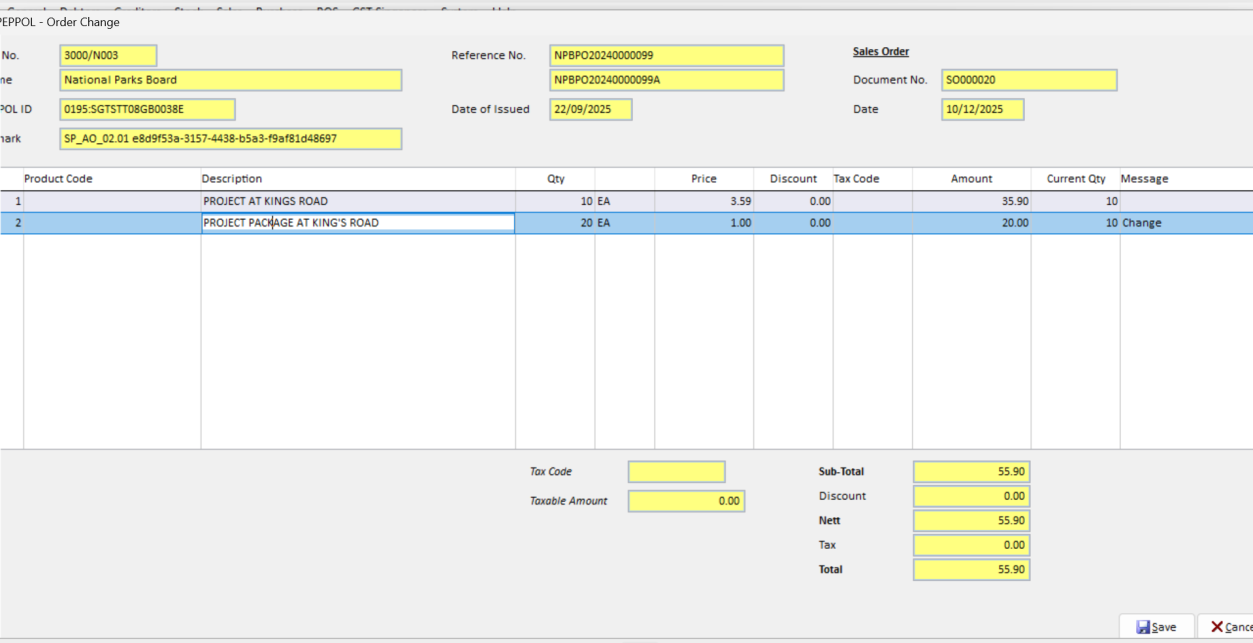
Order Change – Displays changes made to the product quantities.
For an Order Change, review the changes and click Save.
After users click Save, the changes will be automatically updated in the original sales
order.
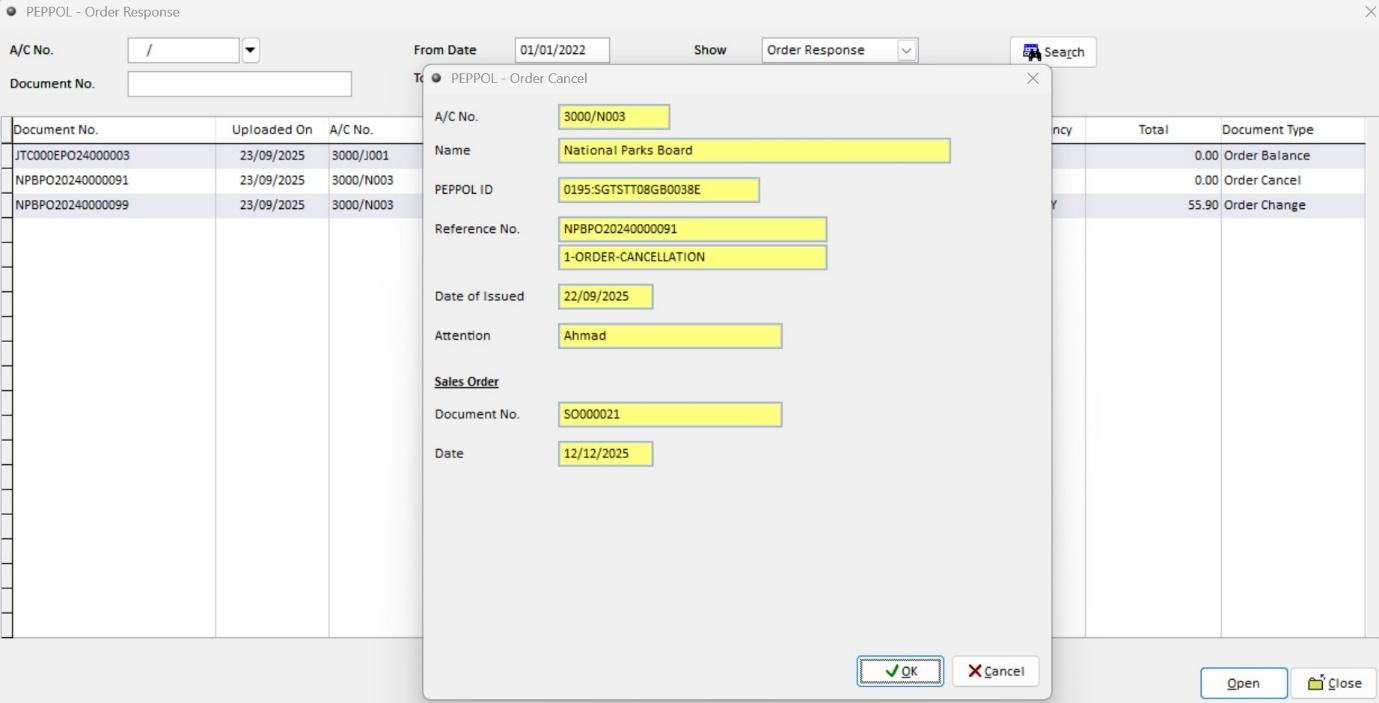
Order Cancel – Displays the Sales Order requested for cancellation.
For an Order Cancel, review the Sales Order to be cancelled and click OK.
The original Sales Order status will automatically be updated to Closed.