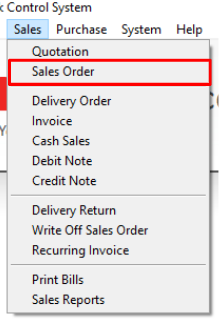
Step 1: Open Sales Order
Navigate to Sales > Sales Order
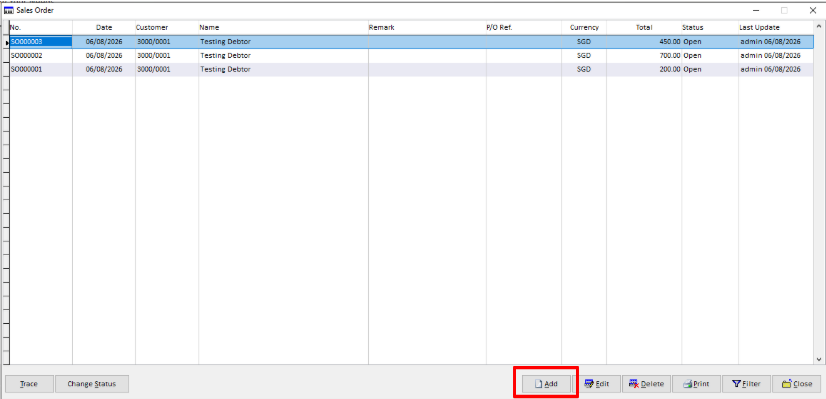
Step 2: Add a New Sales Order
Click Add to create a new Sales Order.
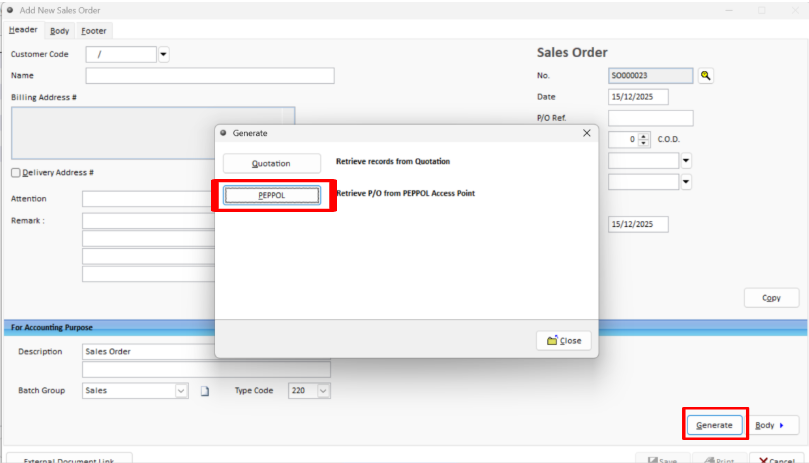
Step 3: Retrieve Sales Orders from Peppol
Click Generate and select PEPPOL.
Step 4: Search for Sales Orders
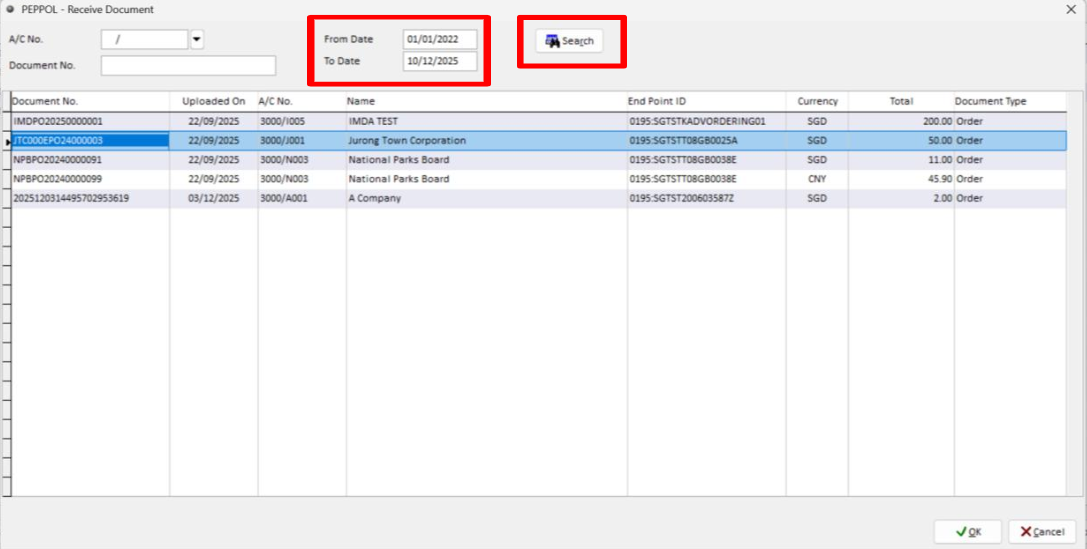
Select the required date range, then click Search.
The system will display all Sales Orders received within the selected period. Select the Sales Order you want to receive and click OK.
Step 5: Select the Sales Order
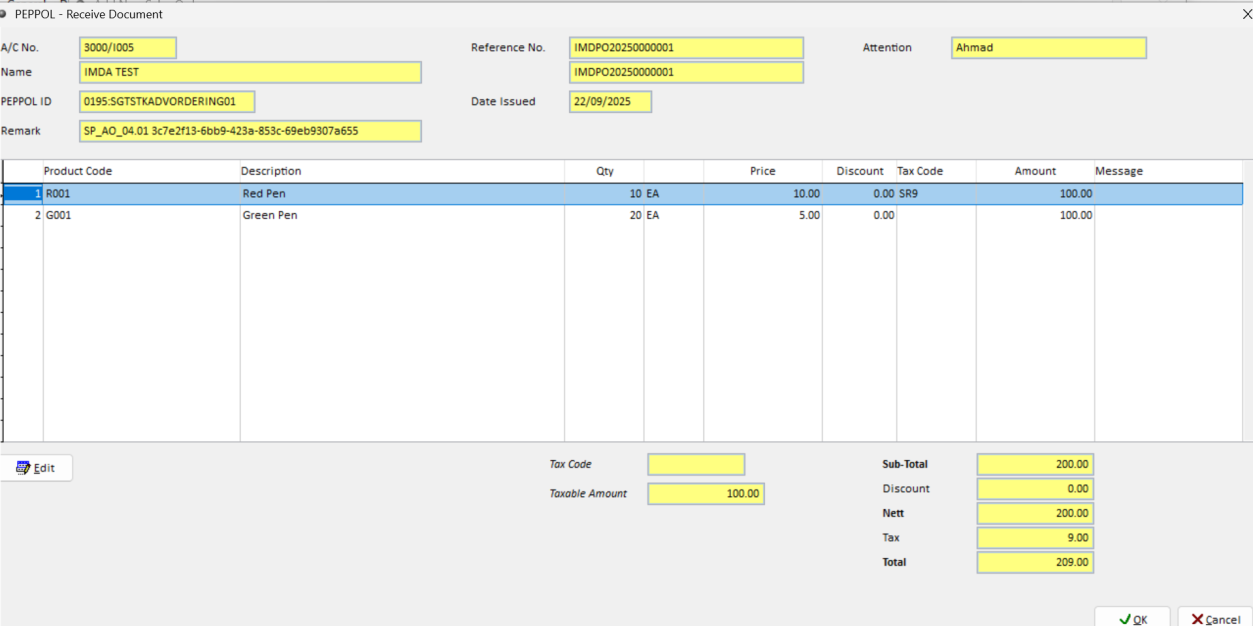
The selected Sales Order details will be displayed for review
Step 6: Send an Order Response
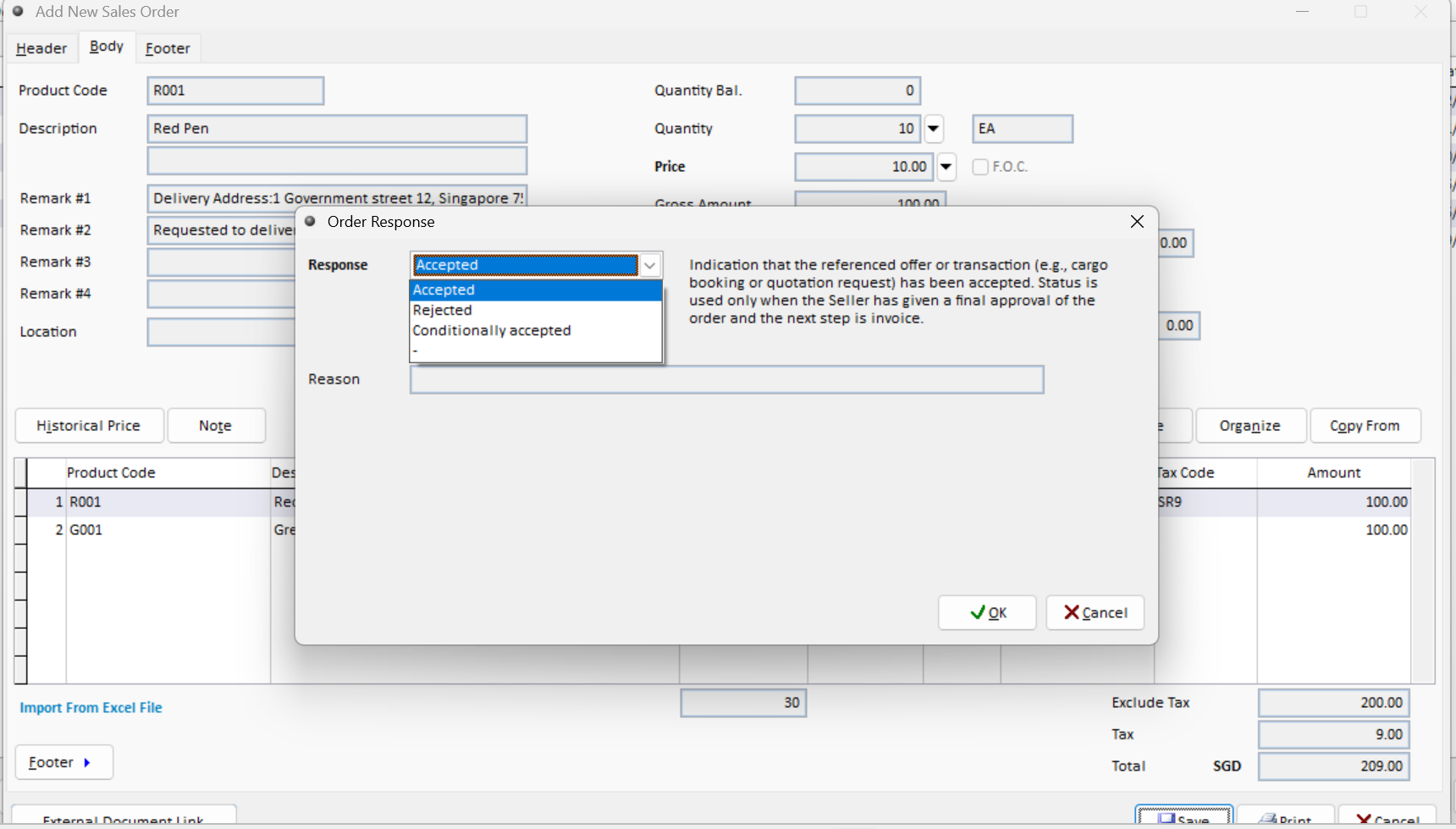
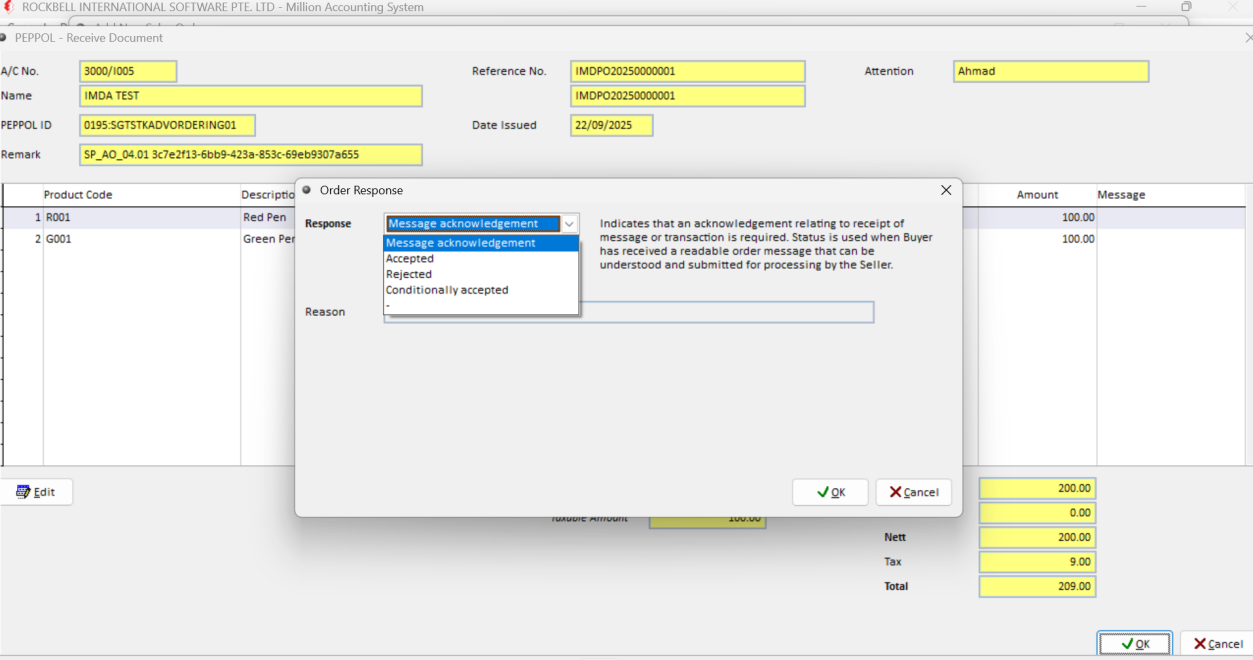
After retrieving the Sales Order, you may select one of the following responses
Message Acknowledgement
Accepted
Rejected
Conditionally Accepted
You may also proceed without sending a response if no response is required.
Step 7: Review and Save the Sales Order
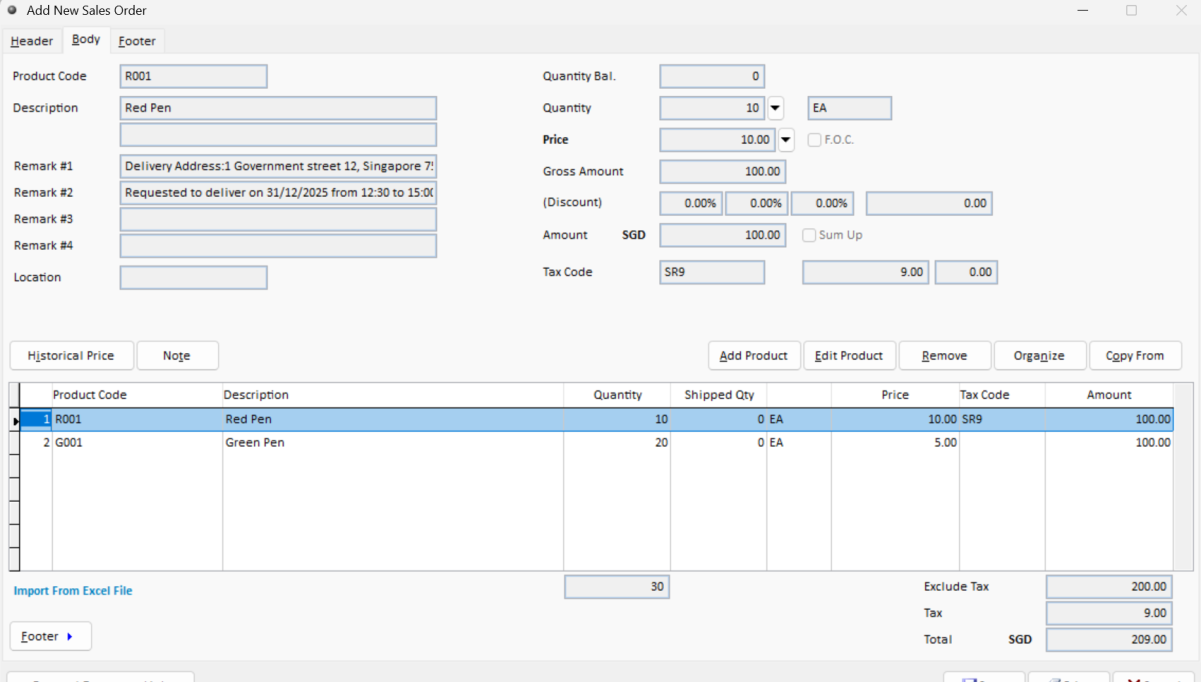
Review the Sales Order details and click Save to proceed.
Step 8: Send the Final Response
After saving, you may send a final response:
Accepted
Rejected
Conditionally Accepted
Alternatively, proceed without sending a response if it is not required.