Check Invoice Submission Status (Video section: 8:31 - 8:48)
Step 1: Open Document Management
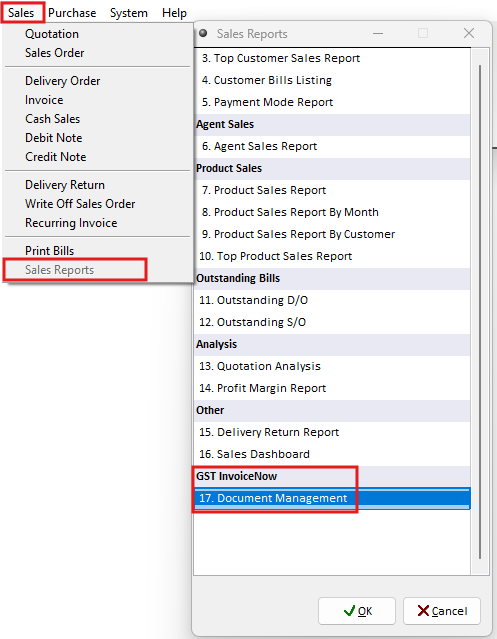
Navigate to Sales > Sales Reports > GST InvoiceNow > 17. Document Management
Step 2: Find the Transaction
Use the available filters to locate the required transaction.
You can filter the list by:
Document Type: Select the document category to display - Invoice, Credit Note, or Cash Sales.
Show Documents: Choose which documents to display:
Both – Shows all submitted and unsubmitted documents.
Not Submitted Yet – Shows documents pending submission.
Submitted – Shows documents that have been submitted.
Date: Filter transactions by a specific date range to display them in the list.
Status: View documents based on their submission status.

Step 3: Check the Transaction Status
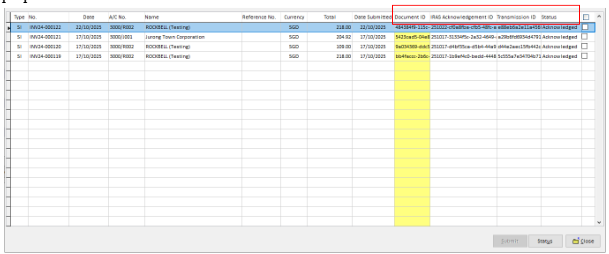
Locate the required transaction and check the Status column to confirm whether the submission was successful or failed.
Step 4: Check the Submission Details
Once the action is completed, you can check the Status column to view the transaction result
— whether it was successfully submitted or failed. Each transaction will be assigned a unique
Document ID, IRAS Acknowledgement ID, and IRAS Transmission ID for tracking
purposes.