
Step 1: Open Document Management
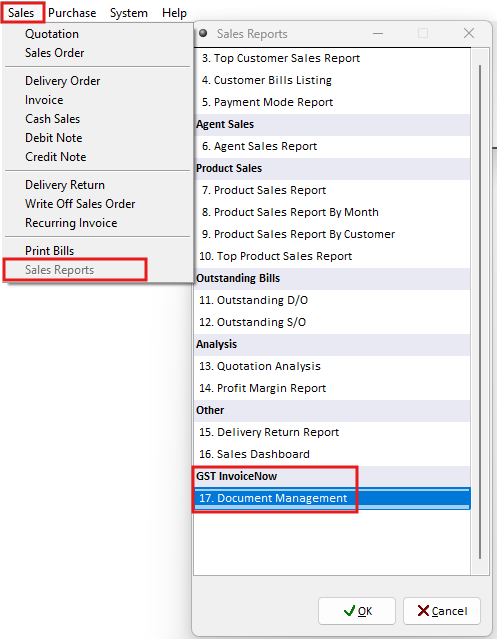
Navigate to Sales > Sales Reports > GST InvoiceNow > 17. Document Management
Step 2: Find the Transaction
Use the available filters to locate the required transaction.
You can filter the list by:
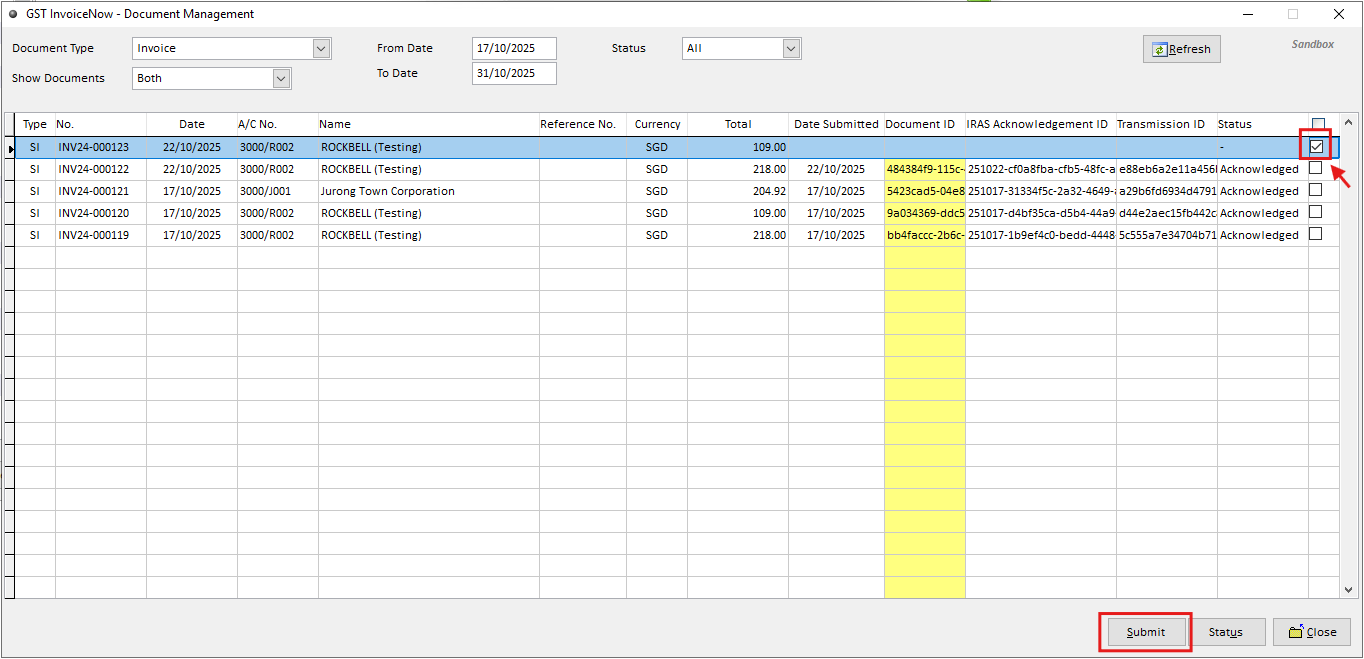
Document Type: Select the document category to display - Invoice, Credit Note, or Cash Sales.
Show Documents: Choose which documents to display:
Both – Shows all submitted and unsubmitted documents.
Not Submitted Yet – Shows documents pending submission.
Submitted – Shows documents that have been submitted.
Date: Filter transactions by a specific date range to display them in the list.
Status: View documents based on their submission status.

Step 3: Submit the Document
Select the required transaction by ticking the checkbox, then click Send to submit it to GST InvoiceNow.
Once the action is completed, you can check the Status column to view the transaction result
— whether it was successfully submitted or failed. Each transaction will be assigned a unique
Document ID, IRAS Acknowledgement ID, and IRAS Transmission ID for tracking
purposes.
Note:
Sales Invoice
Peppol transactions are sent to both the Peppol network and IRAS.
Non-Peppol transactions are sent to IRAS only.
Cash Sales
Cash Sales transactions are submitted to IRAS only.
These are not transmitted to Peppol.