
Step 1: Configure Cash Sales for GST InvoiceNow
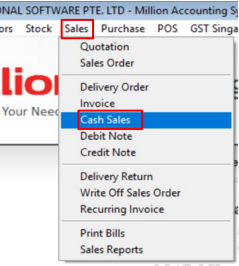
Navigate to Sales > Cash Sales.
Step 2: Add a New Cash Sales
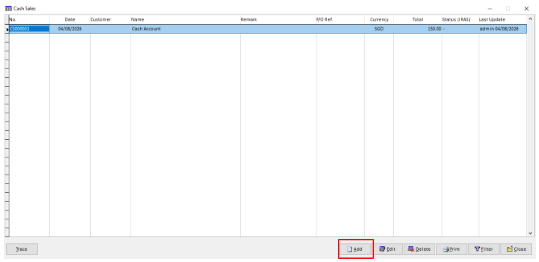
Click Add to create a new invoice.
Step 3: Create a Cash Sales Transaction
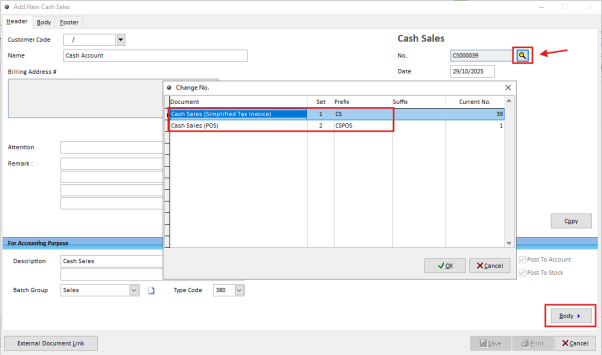
You may skip adding a customer.
Click in the field next to Document No., then select the document type (POS or STI) you wish to create.
After selecting, proceed to the Body page to continue entering the transaction details.
Directly input stock items and payment details into the Cash Sales Body
Step 4: Save/Print and Submit the Invoice
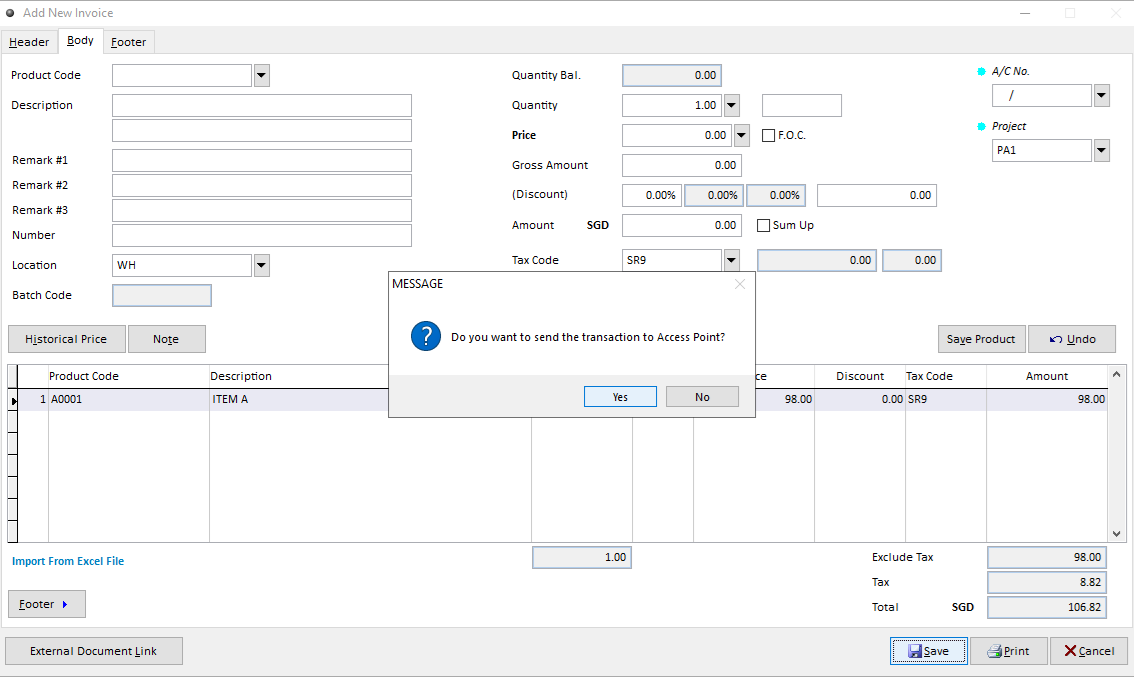
After clicking Save or Print, the system will display a prompt whether to send the e-invoice to IRAS.
“Do you want to send the transaction to Access Point?”
Select Yes → The document will be transmitted automatically.
Select No → The document will not be transmitted immediately and can be submitted later through Document Management.
Note:
Cash sales transactions are submitted to IRAS only.
These are not transmitted to Peppol.