Peppol Sales Invoice in Video section: 1:48 -2:41
Peppol Credit Note in Video section: 2:41- 3:02
Non-Peppol Sales Invoice in Video section: 4:09 - 4:41
Non-Peppol Credit Note in Video section: 4:41 - 5:07
Step 1: Open Invoice / Credit Note
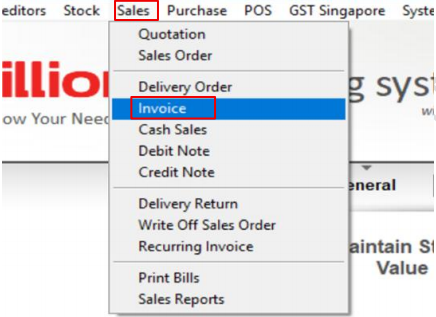
Navigate to Sales > Invoice/Credit Note.
Step 2: Add a New Invoice / Credit Note
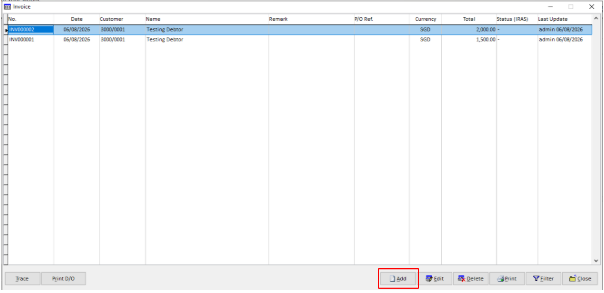
Click Add to create a new invoice or credit note. .
Step 3: Open Batch Generation
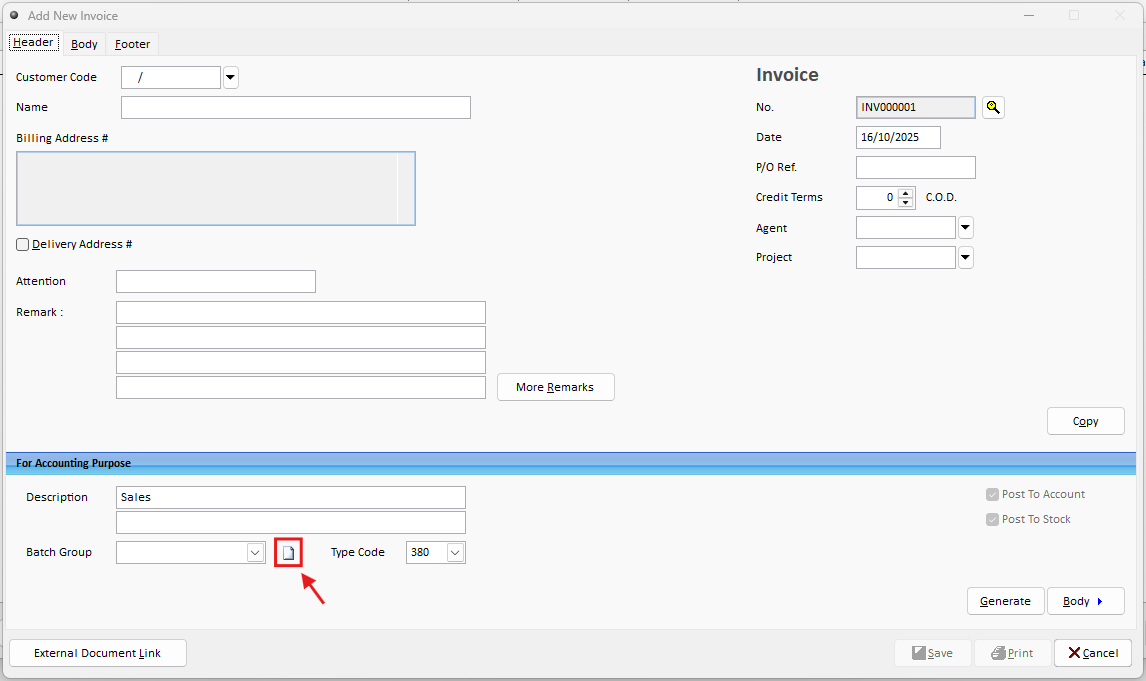
Generate a Batch, point to the cursor shown below
Step 4: Generate a Batch
Click on the “Sample” to generate the batch group, select the required transaction period by month, then click “Generate” to create the batch.
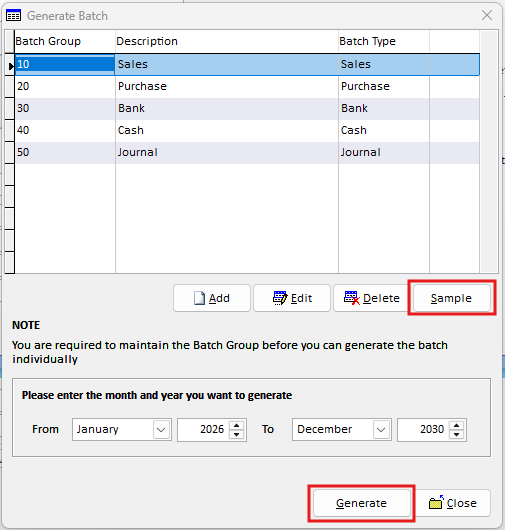
Note: Batch generation is a one-time setup for the selected period. If you need to create transactions for another period in the future, return to this screen and generate a new batch.
Step 5: Enter the Invoice Details
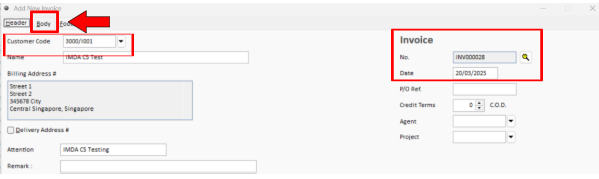
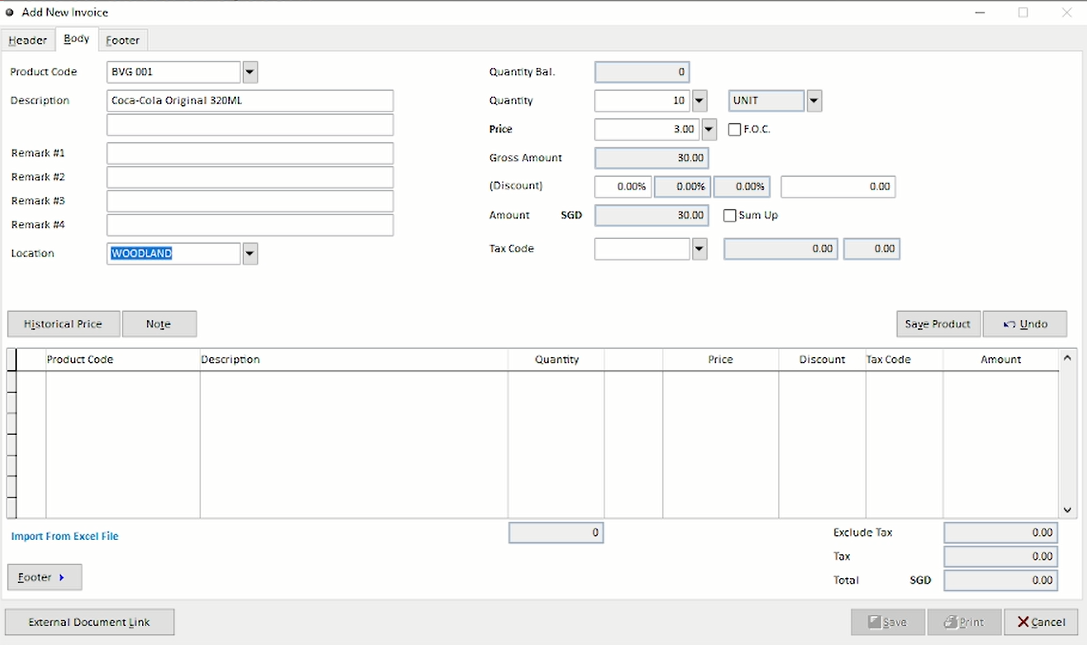
To create a new invoice, Select the required Customer Code and enter the Invoice Date. Then, navigate to the Body section to input your item details, including product code, price quantity and location.
Note:
Peppol Customer – The customer must have a valid Peppol ID maintained in Debtor Maintenance.
Non-Peppol Customer – Enter the customer's UEN in Debtor Maintenance and leave the Peppol ID blank.
Step 6: Save/Print and Submit the Invoice
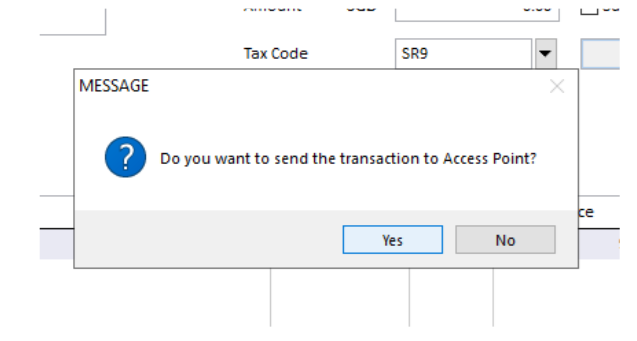
After clicking Save or Print, the system will display a prompt:
“Do you want to Send Transaction to Access Point?”
Select Yes → The document will be transmitted automatically.
Select No → The document will not be transmitted immediately and can be submitted later through Document Management.