
Important Notes:
- IR8A submission via AIS (Auto Inclusion Scheme) is only functional at Payroll Version after 19 November 2025. You can check your version at Help > About / double click 'Version 3.0' at Get Started page.
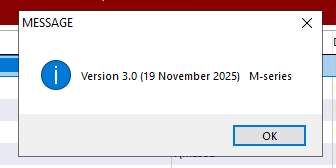
TABLE OF CONTENTS
- Steps before you submit: Step 1 - Check the Monthly Payroll
- Steps before you submit: Step 2 - Maintain the Organisation Setting
- Steps before you submit: Step 3 - Maintain the Allowance & Payment Table
- Steps before you submit: Step 4 - Employee Maintenance
- Submission of IR8A: Step 1 - Generate IR8A prefilled forms for all the staff.
- Submission of IR8A: Step 2 - Validation & Submission
- Submission of IR8A: Step 3 - Acknowledgment by IRAS
- Frequently Asked Questions (FAQs)
Steps before you submit: Step 1 - Check the Monthly Payroll
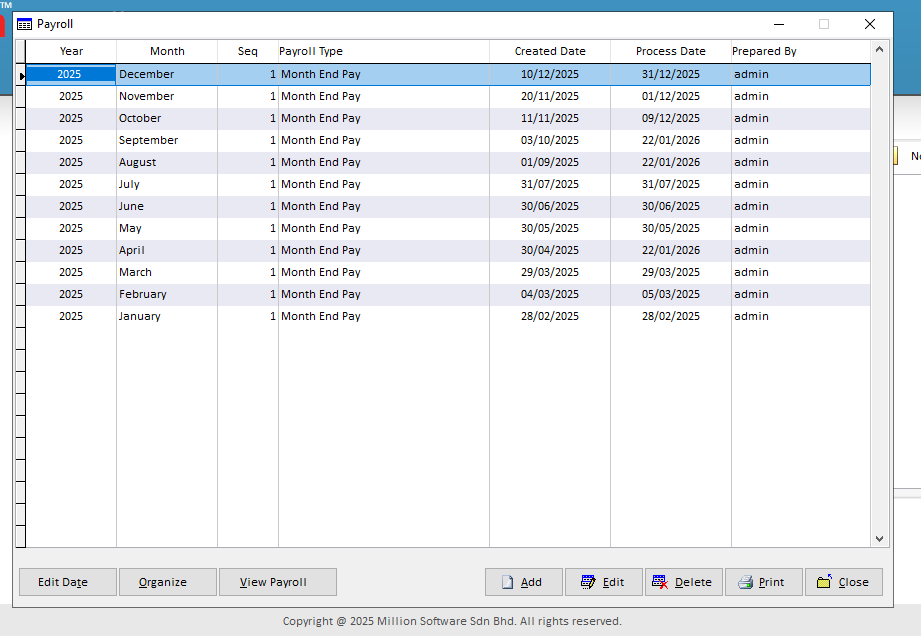
- Please ensure that you have finished keying in 12 month payroll, then you will be able to generate the IR8A reports in Million Payroll System.
Steps before you submit: Step 2 - Maintain the Organisation Setting
- Before generating the report, please make sure that the information are maintained in Payroll, as this is a government requirement.
- Go to Setting > Statutory Setting.

- Then, 3. Organisation Setting.

- Income Tax > General Tab
- Employer File No. > Company UEN No. (this is the business registration number that is registered with IRAS)
- Person In charge
- Name > HR person in charge name (Compulsory Column)
- I/C No. / Passport > HR person in charge I/C No. (Compulsory Column)
- Job Title > HR person in charge Job Title (Compulsory Column)
- Phone No. > HR person in charge Phone No. (Compulsory Column) Do not put special symbol like + or -, else will have error.
- Fax No. > HR person in charge Fax No. (Optional Column)
- Email > HR person in charge Email (Compulsory Column)

- Income Tax > APS Tab
- Originator Name > key in Company Full Name

- Income Tax > Other Tab
- Put the Source an Organization ID Type. If you are not sure what is the type of your company, please go to Search UEN to check the result.

Steps before you submit: Step 3 - Maintain the Allowance & Payment Table
- Allowance: If there are any allowances that is taxable, please maintain the IR8A row number.
- Go to Employee > Allowance > Select & Edit
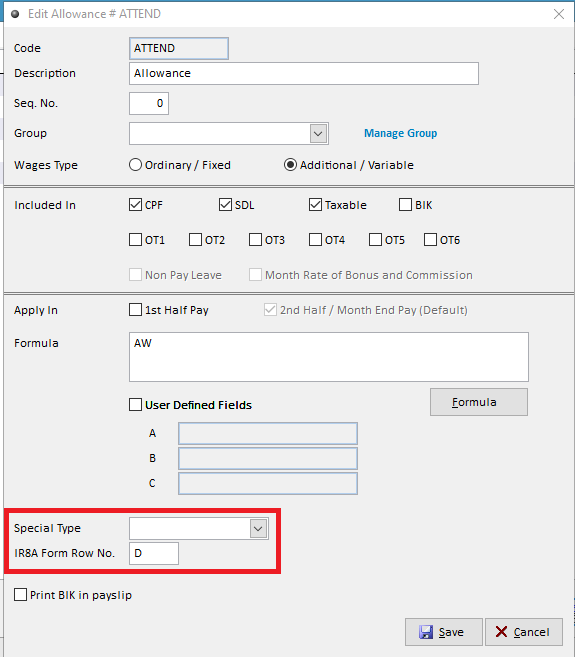
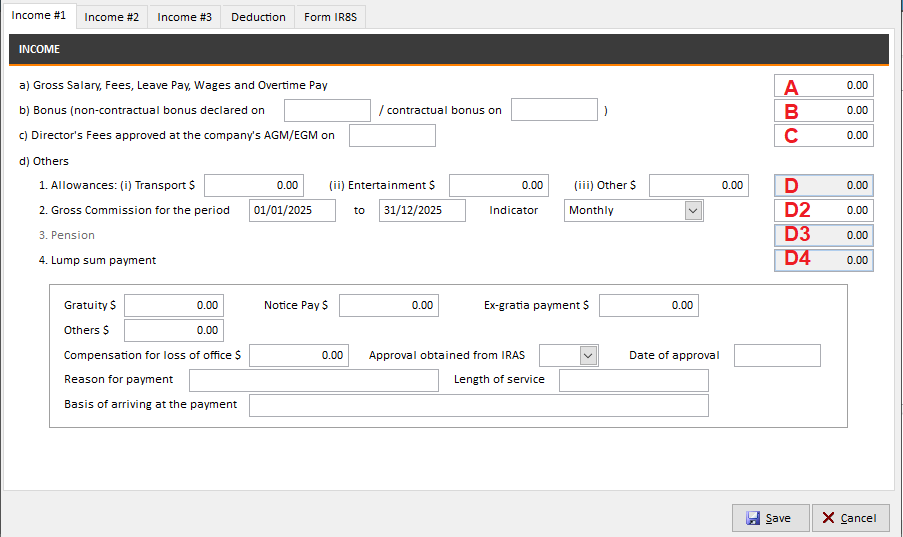
- Row No: Refer to the original IR8A form to know which columns to post allowances to.
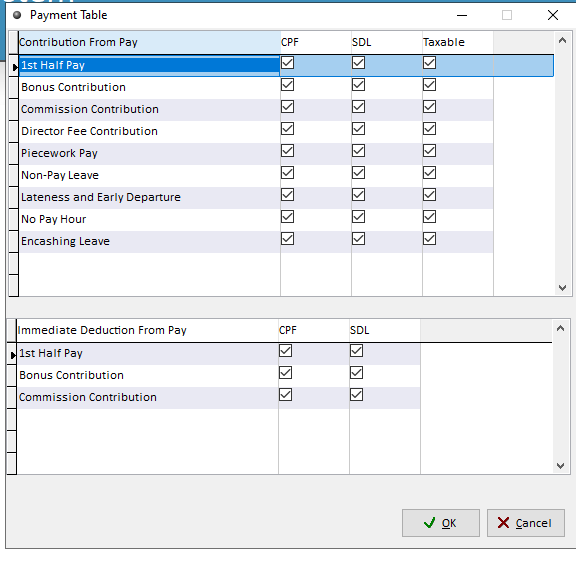
- Setting > Payment Table, check if Taxable is ticked.
Steps before you submit: Step 4 - Employee Maintenance
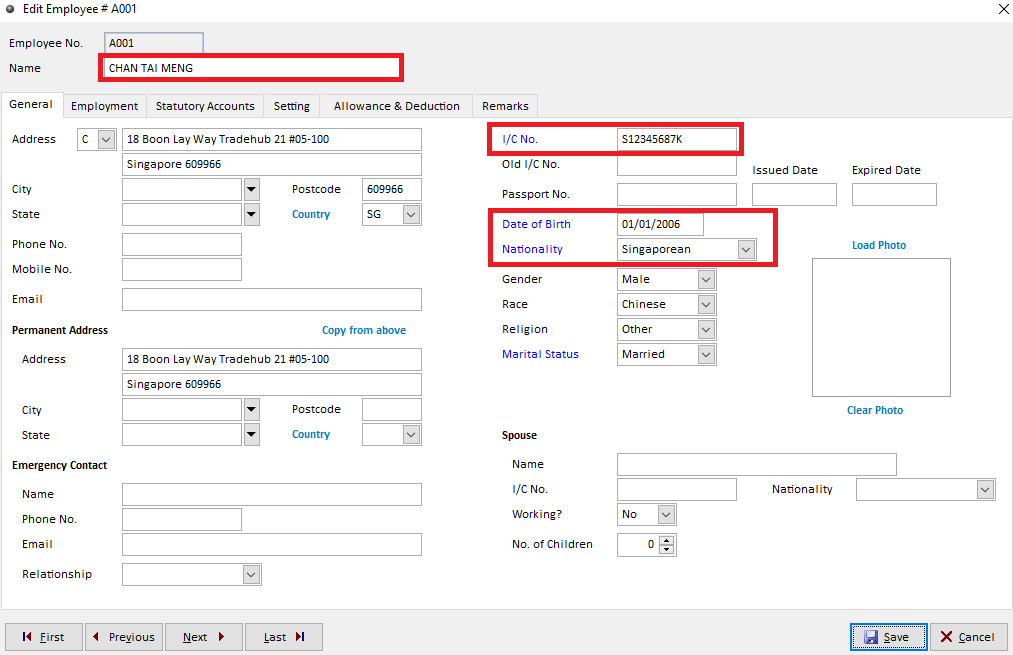
- The following fields are mandatory for IR8A submission.
- General:
- Employee Name, Country, I/C No (key in FIN for foreign workers)., Date of Birth, Nationality
- Address Type: Local (L), Foreign (F), Company (C), or blank.
- Address Line 1: If Address Type is not blank, then it is mandatory to key in.
- Postcode: If Address Type is Local (L), then it is mandatory to key in.
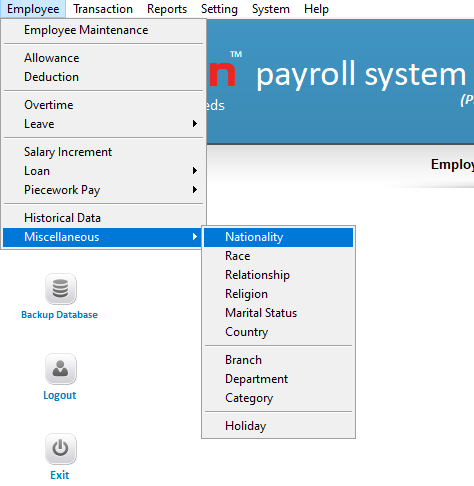
- If you have foreign employees, kindly proceed to Employee > Miscellaneous > Nationality to maintain the special codes.
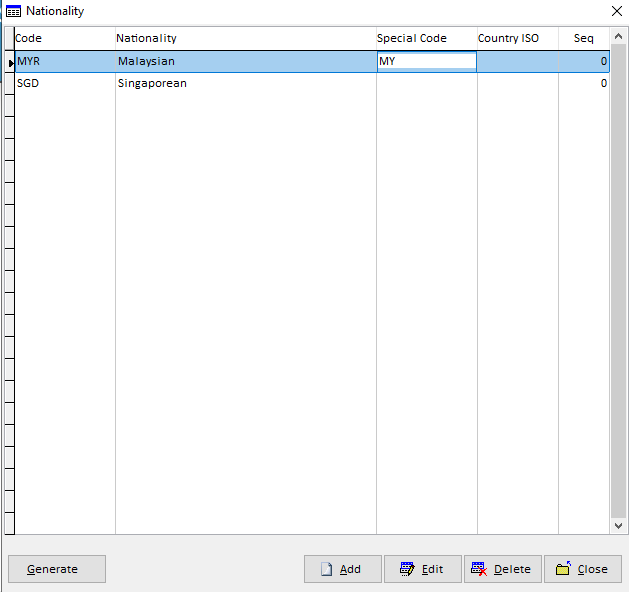
- Click 'Add' to add new nationalities, or click 'Edit' to update.
- Common special codes:
- Singaporean: (No need to maintain)
- Burmese (Myanmar): MM
- Chinese (PRC): CN
- Filipino (the Philippines): PH
- Indian: IN
- Indonesian: ID
- Malaysian: MY
- Nepal: NP
- Thai: TH
- Vietnamese: VN
- For the complete list, you may download from this link, published by IRAS.
- Employment:
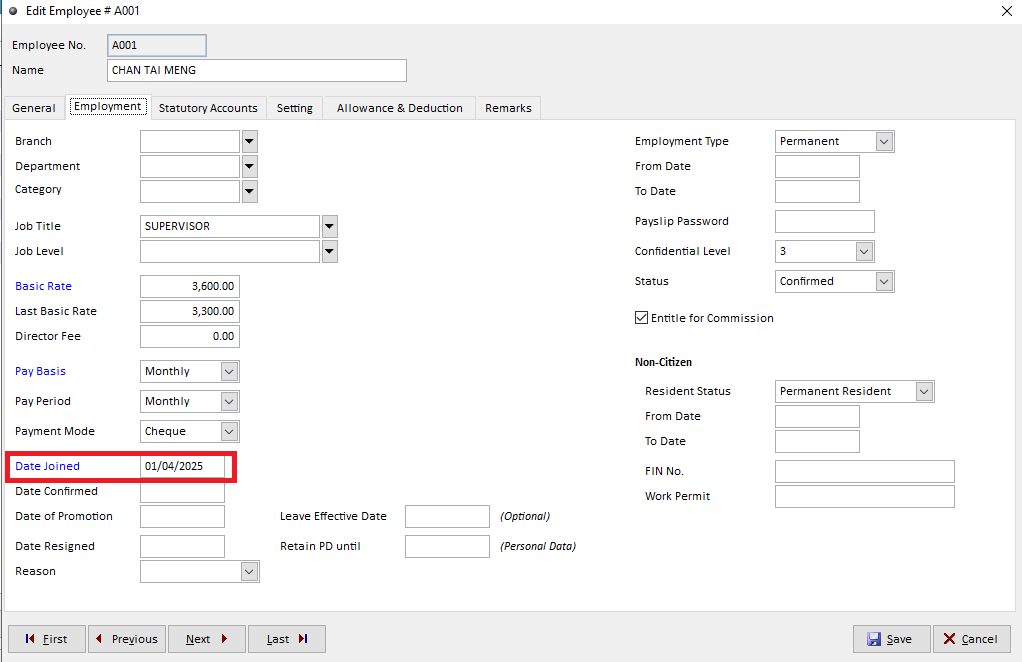
- Date joined
- Date resigned (if applicable)
- Both of these dates must be on or before 31/12/2025 for YA2026.
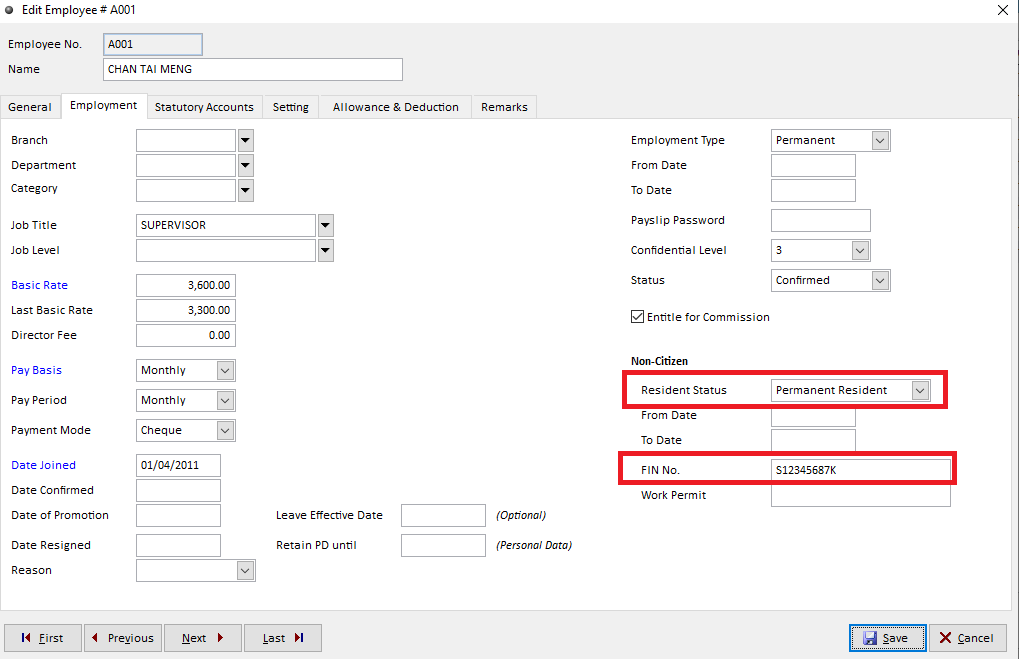
- If the staff is a foreign worker / PR, Resident Status & FIN No. is compulsory.
After all the above steps has been done, you may now proceed to generate IR8A submission.
Submission of IR8A: Step 1 - Generate IR8A prefilled forms for all the staff.
- Report > Government Reports

- Government Report > IR8A (button at the lower left side of the window)

- IR8A Form > Generate (button at the lower left side of the window)

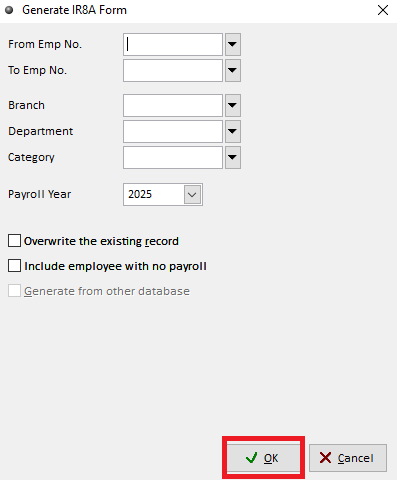
- Click 'OK' to generate. Filter if needed, no filter will generate all.
- After generating, if there are any staff that has amendment in the monthly payroll & you have processed their pay again, you may select their Emp No & check the option 'Overwrite the existing record'.
- After generation, your employees will show up in the record.
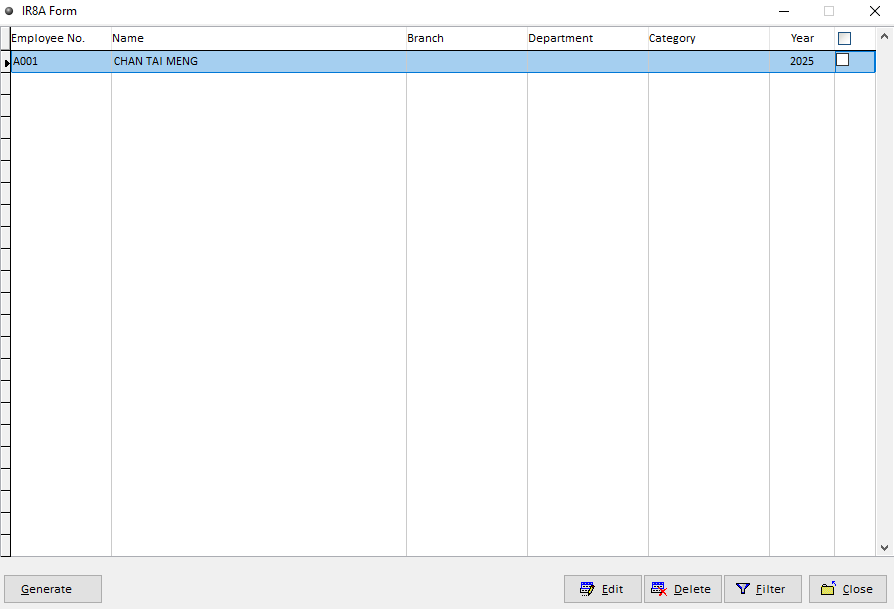
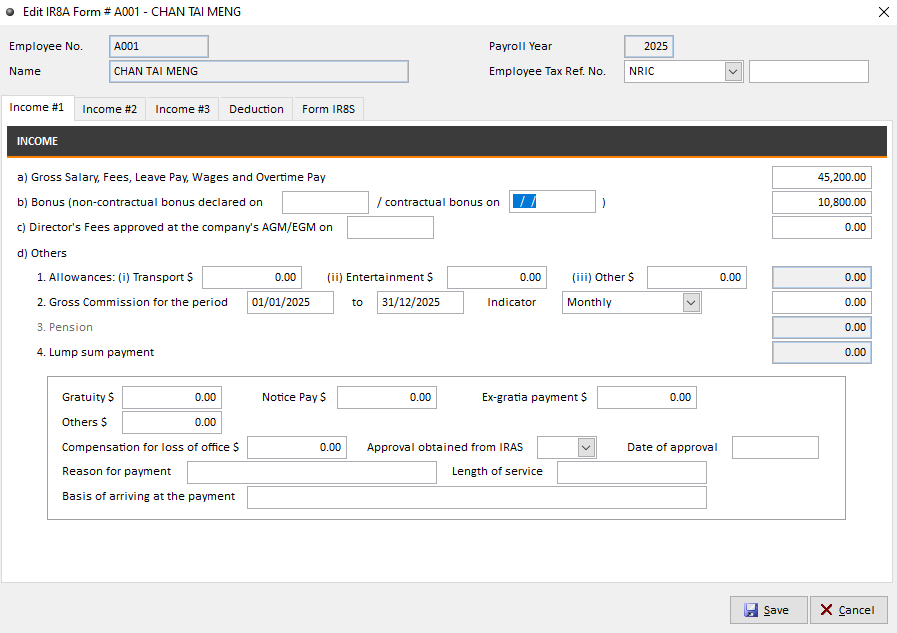
- You can also select Edit, to preview or amend the information for individual employee.
Submission of IR8A: Step 2 - Validation & Submission
- Close the above windows & go back to Government Reports.
- Government Reports > IR8A Form

- IR8A Form > Submission

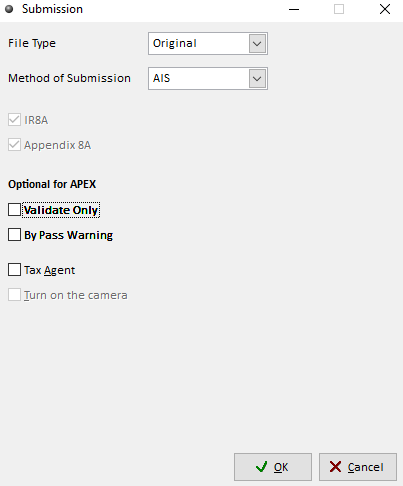
- Click OK to generate the IR8A.json file, which is the file for submission.
- File Type: Select 'Original' if this is the 1st time that you are submitting the IR8A for the year of assessment.
- Method of Submission: Recommended to select 'AIS' (Auto-Inclusion Scheme)
Additional Notes:
- File Type:
- If submitting for the 1st time (in the same YA), select Original for the file type.
- Revision: When used, a new submission wll be created to overwrite the Original submission. Allow to key in a new amount to replace the old one entirely.
- Amendment: Amend the oiginal submission by plus or minus on the original amount. E.g., if a field was $5,000 in the original submission, when it actually is $8,000, then in the amendment should key in as $3,000.
- Select where you want to export the IR8A.json file to, then click 'Select'.
- It is recommended to create a new folder 1st before you save the file.

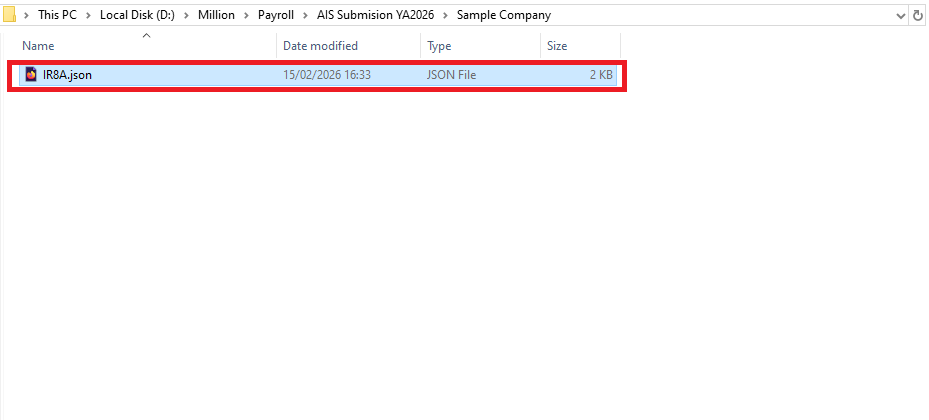
- Open your File Explorer / This PC & locate your files. Make sure you can find the file.
- Check the Date Modified to confirm that this is the file that you have just generated.
- File Type is JSON file, not Text Document anymore due to IRAS switching from AIS 1.0 to AIS 2.0.
- After generating the IR8A.JSON file, a message will pop up for launching the application for submission website, click Yes.
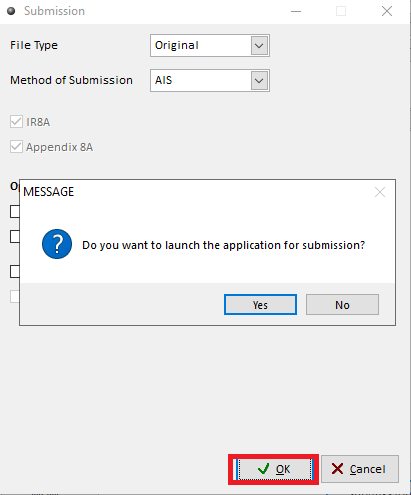
- Payroll will redirect you to the upload website.
- Click 'Choose File' to upload the IR8A.json file that you have generated.
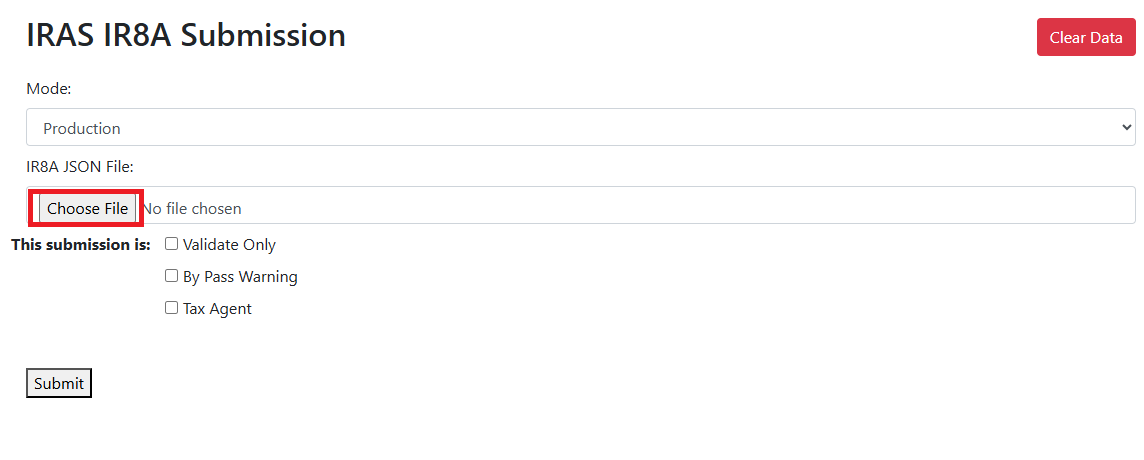
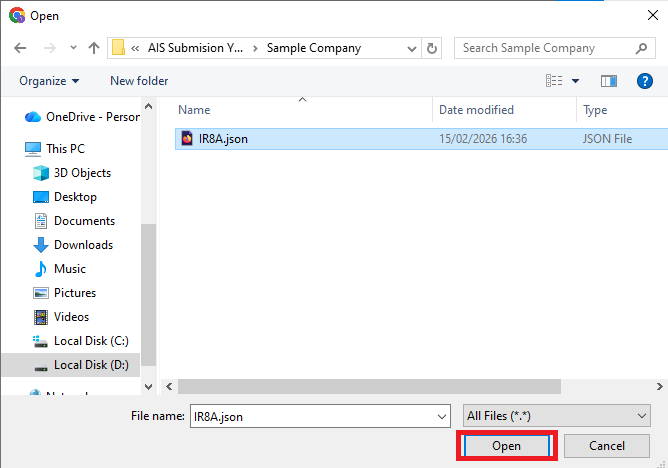
- Navigate to the folder that you saved the IR8A.json file, select it & click 'Open'
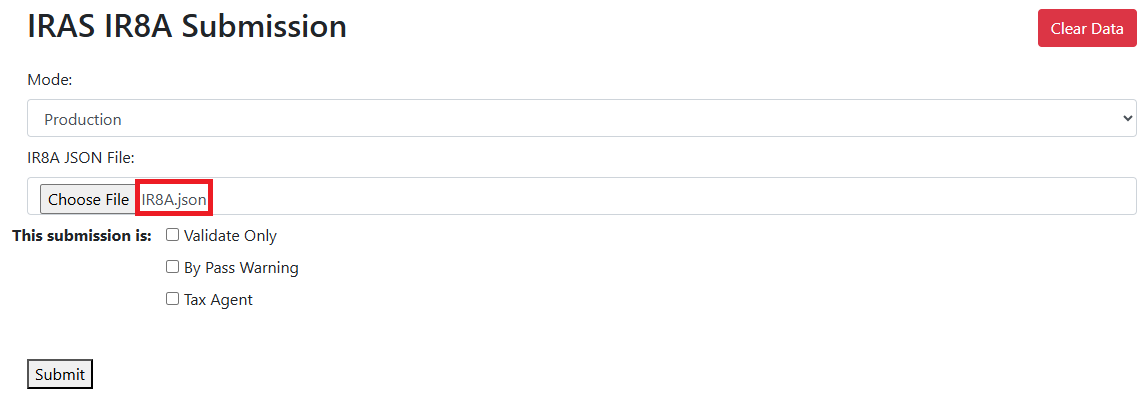
- The file name 'IR8A.json' will appear if upload successfully.
- Validate Only:
- The website will check the file for any errors or warnings.
- By ticking this option, the IR8A file will not be submitted to IRAS,.
- Recommended if you are submitting for the 1st time in the year of assessment, for a company.
- Tick the 'Validate Only' checkbox, & click Submit.
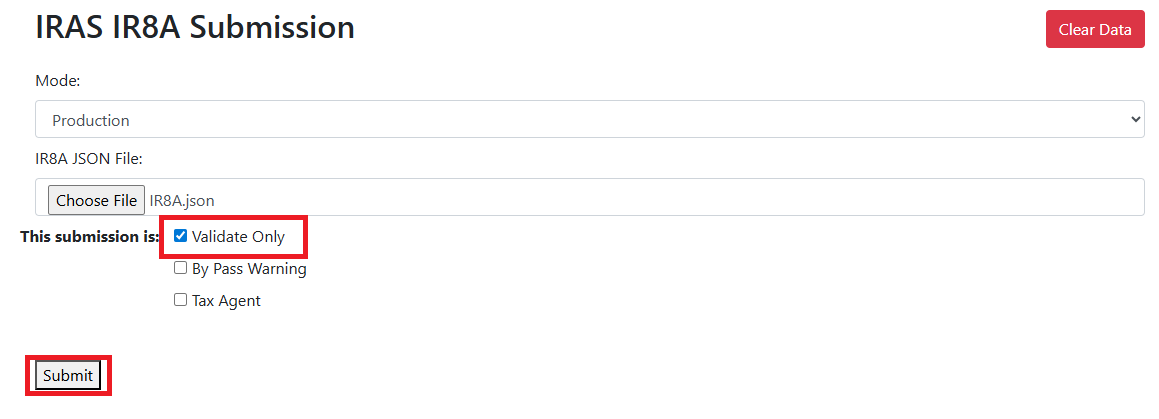
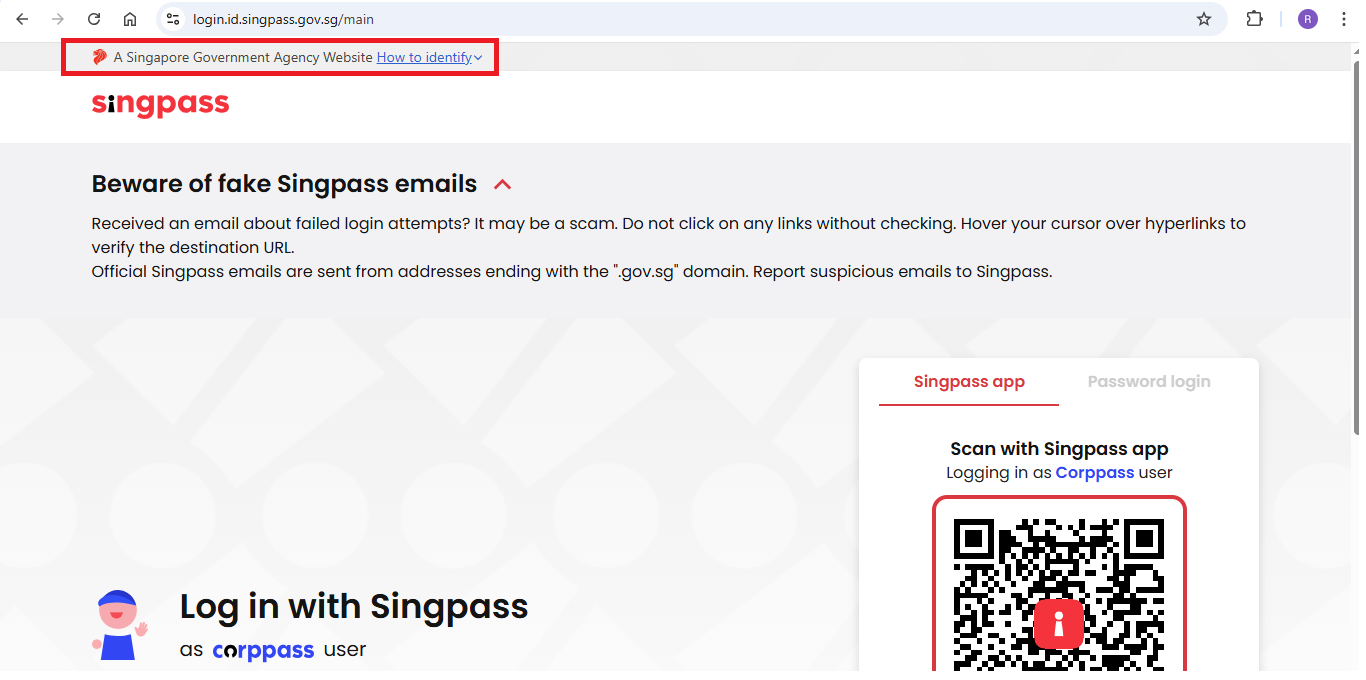
- You will be redirected to Singpass login page, to log in as a Corpass user.
- To login, you may open the Singpass app on your mobile phone to scan the QR code, or you may select Password Login to key in your ID & password.
- This website is a Singapore Government Agency Website, as shown on the top of the webpage.
- After login, you will see a company / entity selection page. Select the companyentity that you wish to submit IR8A for.
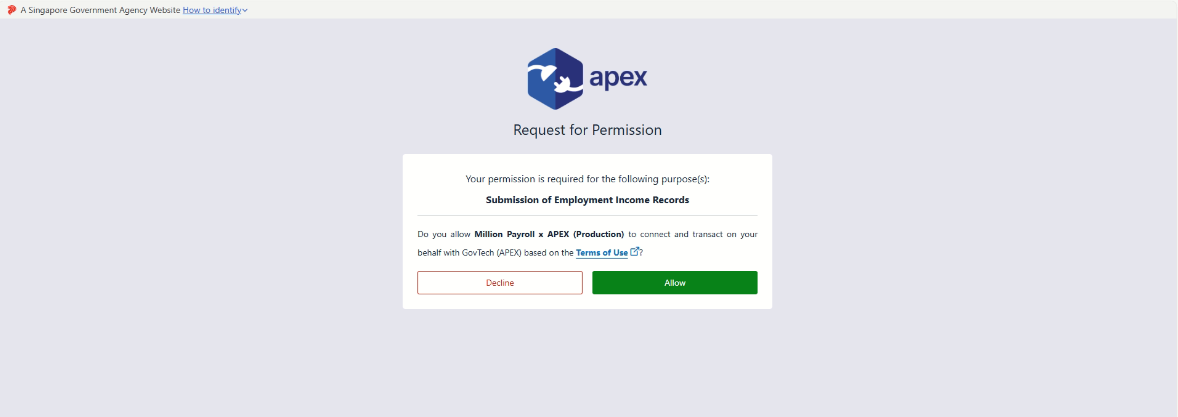
- On the next page asking you whether to allow Million Payroll x APEX, click 'Allow'.
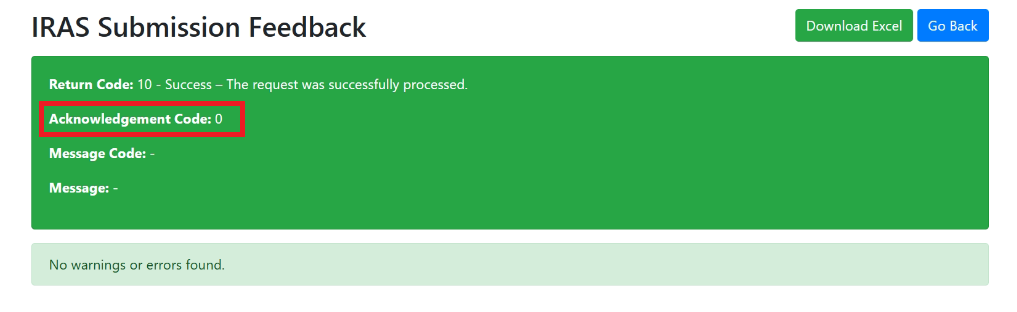
- If no errors or warnings are found, the feedback will be green.
- Acknowledgment Code: 0 means that no submission is made, just checking on the file.
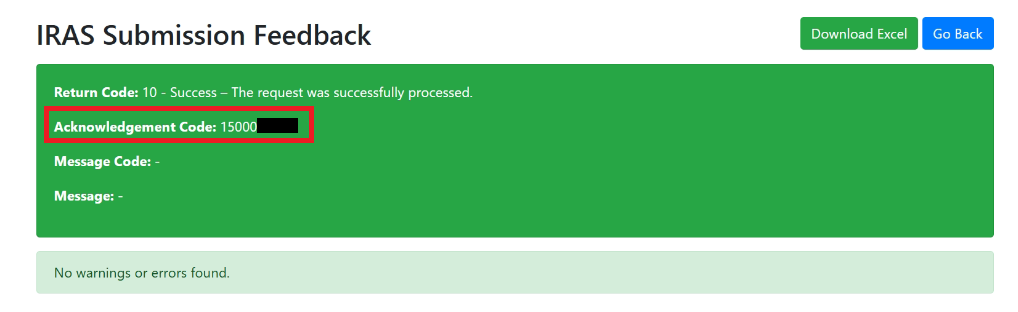
- If the Validate Only is not checked, there will be an acknowledgment code assigned. This means that the IR8A submission is successful.
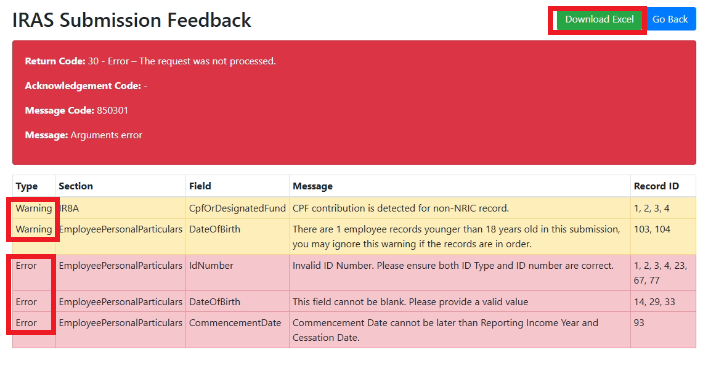
- If there are errors & warnings, the feedback will be red.
- Warning: Non-fatal issues. Can bypass if it is accounted for.
- Error: Fatal issues that must be addressed.
- You may click the 'Download Excel' button on the upper right hand side, to check what went wrong.
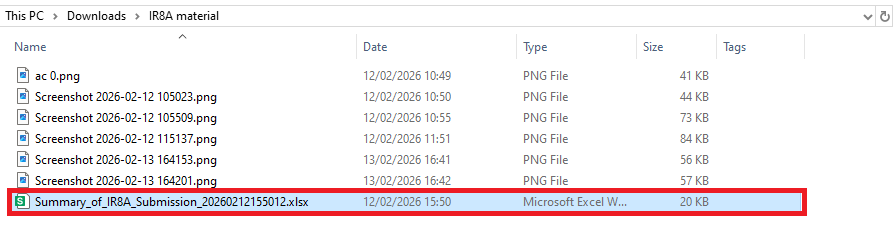
- A spreadsheet will be downloaded. Check the Downloads folder for the file. Double click to open.
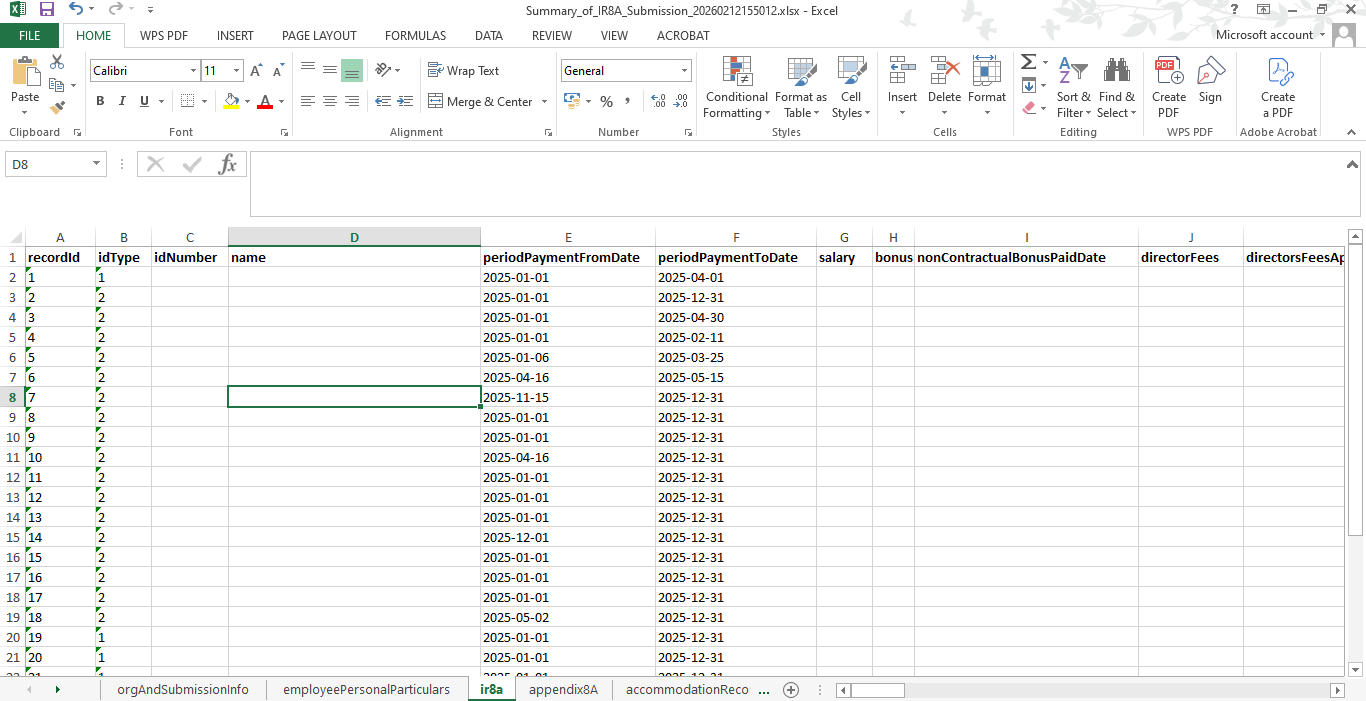
- You may refer to the Record ID at the website, & check against the recordId column (1st column), to see what are missing.
- Then, you may proceed to Payroll to amend at there. Do not amend at the spreadsheet.
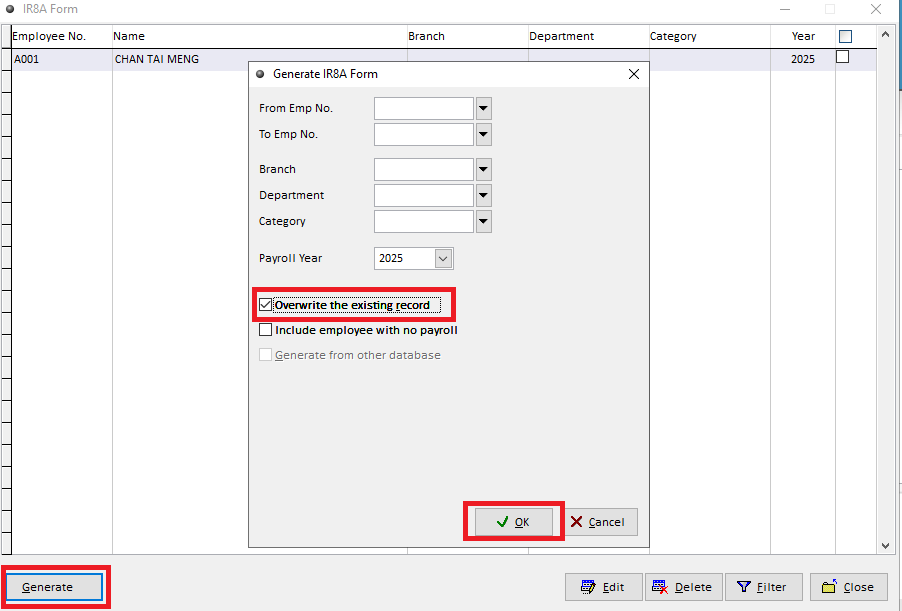
- After amending the information, you may generate the IR8A.json file again, and select the “Overwrite the existing record” to overwrite previous records.
- It is recommended to only overwrite the staff names that has amendment to their info, by using the Filter option at the top (From Emp No., To Emp No.)
- After that, you may repeat the steps of generating the IR8A.json file, uploading it, as well as validation. You may scroll up to Step 2 - Validation & Submission, to repeat the steps.
- By Pass warning:
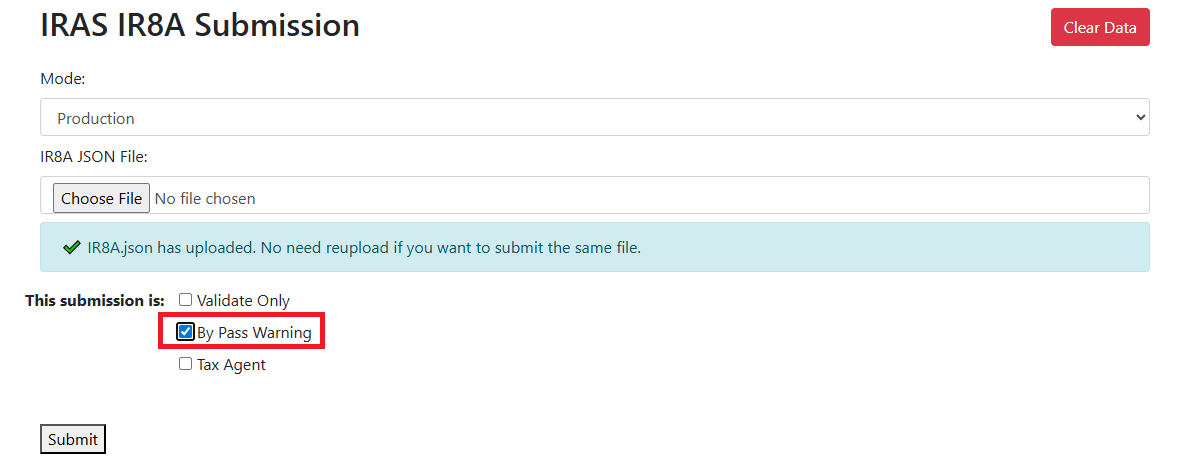
- If you have warnings in your submission, & you are sure that these warnings can be ignored, you may tick the checkbox 'By Pass Warning'.
- Common warnings: No employee contribution of CPF, employee age less than 18 years old, etc.
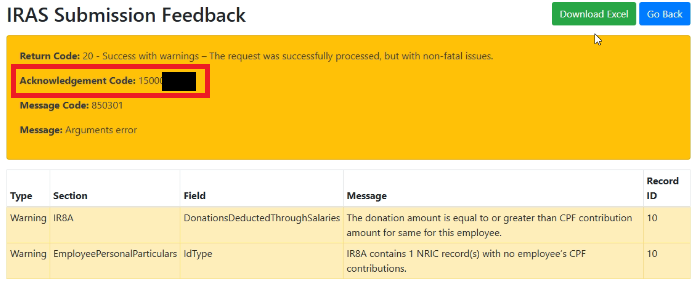
- The submission feedback will be yellow. The request was successfully proccesed, but with non-fatal issues.
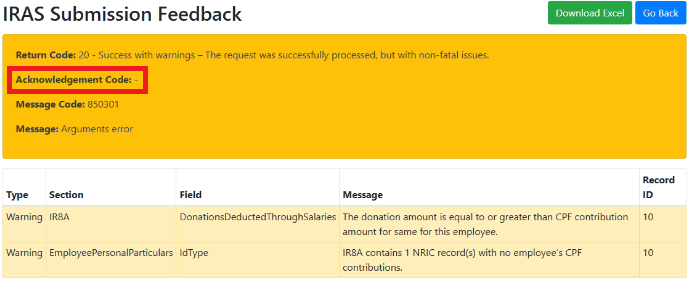
- If both Validate Only & By Pass Warning is checked, there will be no acknowledgment code as the file is only validated, not submitted.
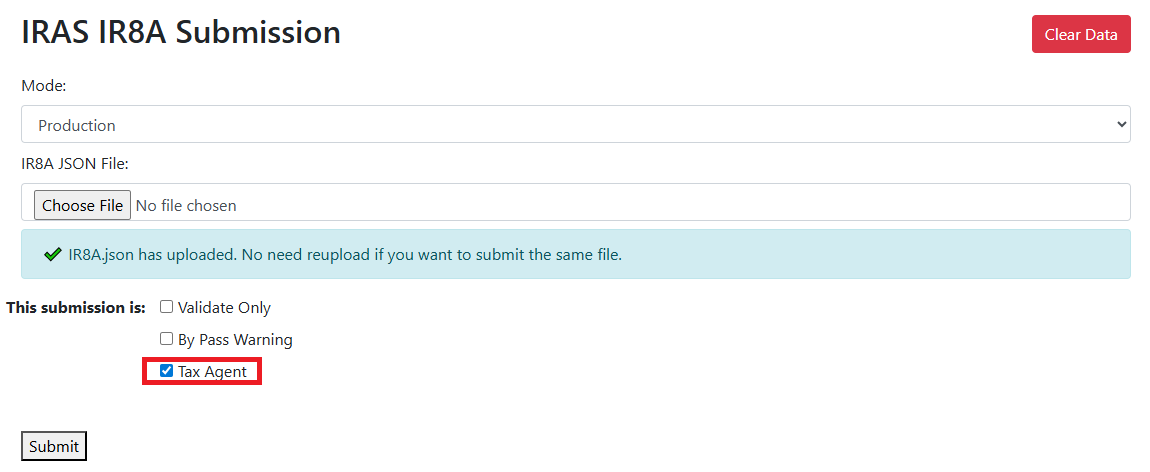
- Tax Agent:
- If you are submitting IR8A for your clients, you may tick the 'Tax Agent' checkbox to indicate that you are submitting on behalf of them.
Submission of IR8A: Step 3 - Acknowledgment by IRAS
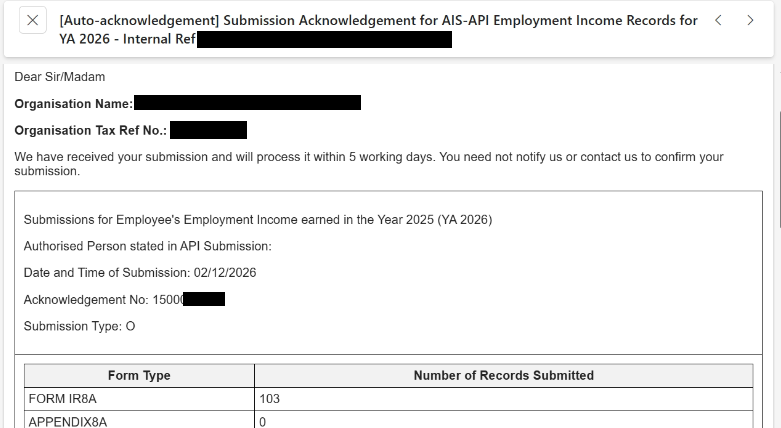
- Shortly after your submission, you will be receiving an email from IRAS, confirming your submission.
- If you have not received it, check your spam inbox or other email inboxes.
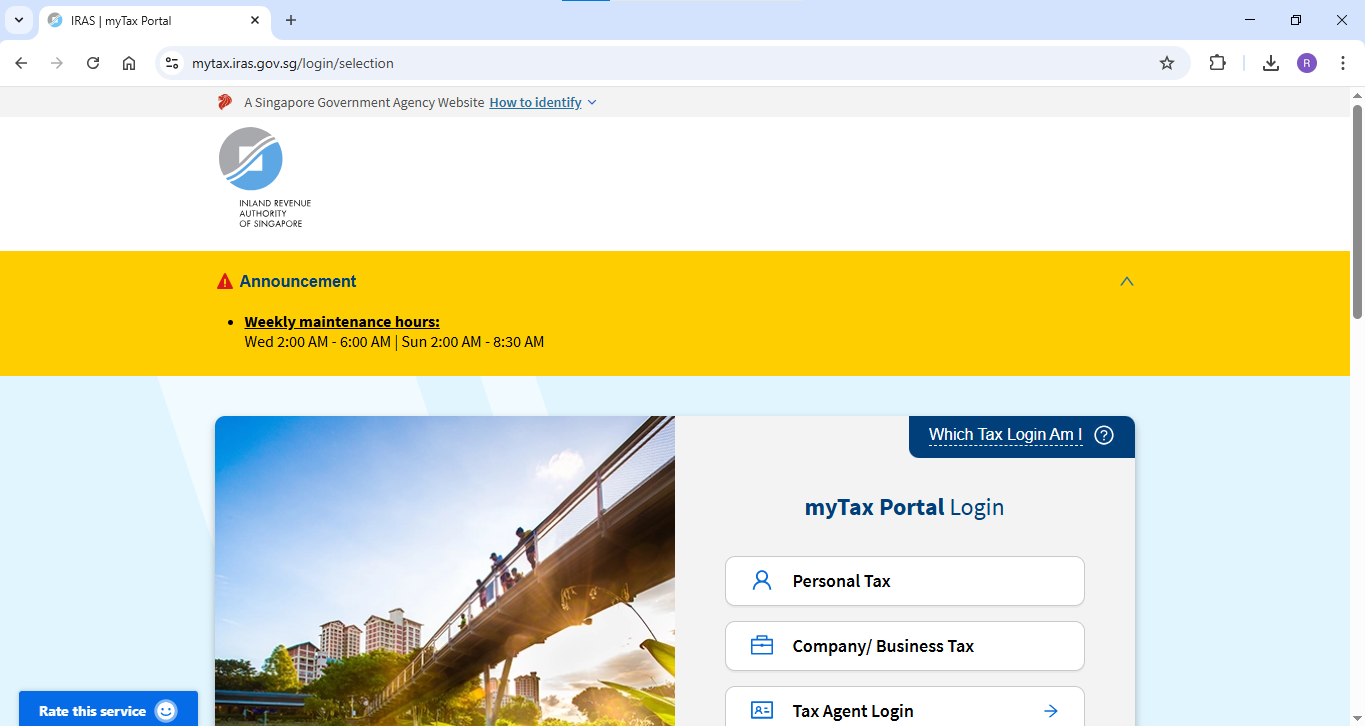
- You may also login to mytaxportal to check.
Frequently Asked Questions (FAQs)
1. I have workers that I have already submitted IR21 form for them, do I still need to submit their IR8A forms?
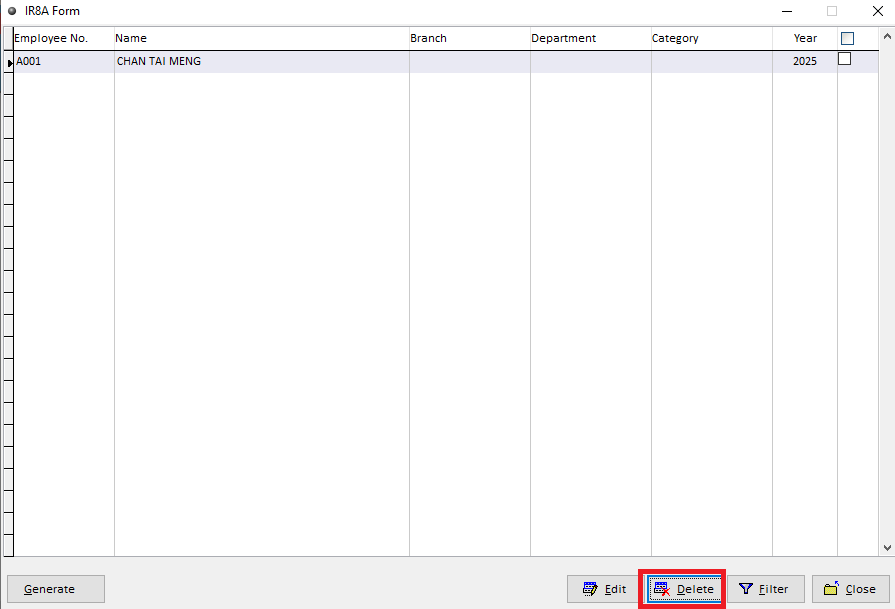
- No. You will need to remove their IR8A forms from the submission before you generate the IR8A.json file.
- Go to Government Reports > IR8A > select the records & click 'Delete'.
2. I just started using Million Payroll halfway in the year, can I still use the IR8A submission function?
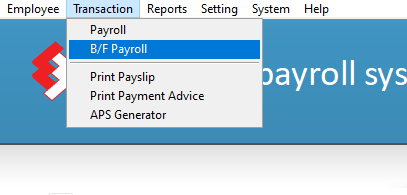
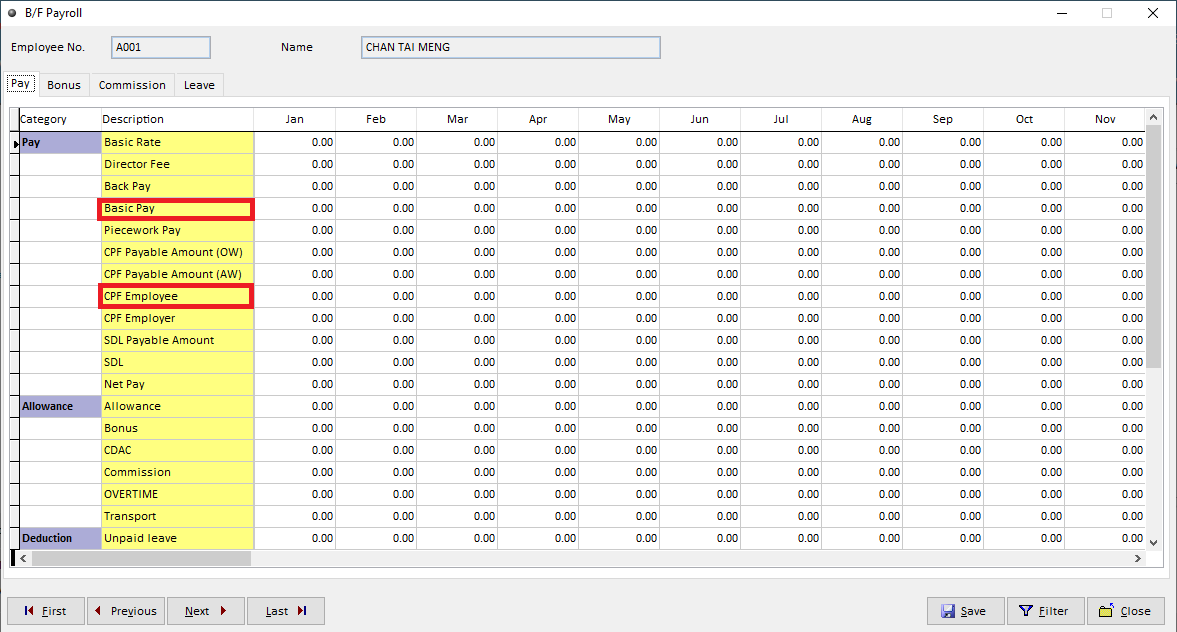
- Yes. For the missing months, you will need to maintain B/F Payroll under Transaction > B/F Payroll
- Necessary fields: Basic pay, CPF contribution by employee, & other taxable income, such as allowances & bonuses.
3. As an employer, I have voluntarily contributed more to my staff CPF, how do I fill in the form IR8S?
- According to the latest explanatory notes published by IRAS, form IR8S is no longer in use for YA2026.
- Kindly refer to this link, or contact an IRAS representative for any IR8A filing inquiries.
4. I run into a SERVER 500 error during the submission, why is that?
- It is usually due to Setting >Statutory Setting > Organisation Setting not maintained properly. Please refer to Steps before you submit: Step 2 - Maintain the Organisation Setting
- Make sure that you do not have any special symbols like + or -, at the phone number / handphone.